

Enable reCAPTCHA spam protection
Protect forms from bot submissions with Google reCAPTCHA v2 Invisible, then place the site and secret keys in the correct settings.
Use this when a form needs spam protection without adding a visible checkbox for real shoppers.
Roadmap supports Google reCAPTCHA v2 Invisible.
reCAPTCHA is a Google service that helps tell real shoppers apart from automated bots.
Without it, forms can attract spam submissions that clutter inboxes, pollute customer data, and create noise for your team.
Invisible reCAPTCHA is not visible to customers on the storefront and works silently in the background.
Suspicious traffic can be challenged or blocked before the submission is accepted.
This makes it a good fit for trade applications, quote requests, contact forms, and other lead forms where you want less spam without adding friction.
Before you start
Have these ready first:
- a Google account
- the form has already been created in Forms
- access to Settings in Roadmap
- access to Online Store → Themes → Customize
- the storefront domain where the form will run
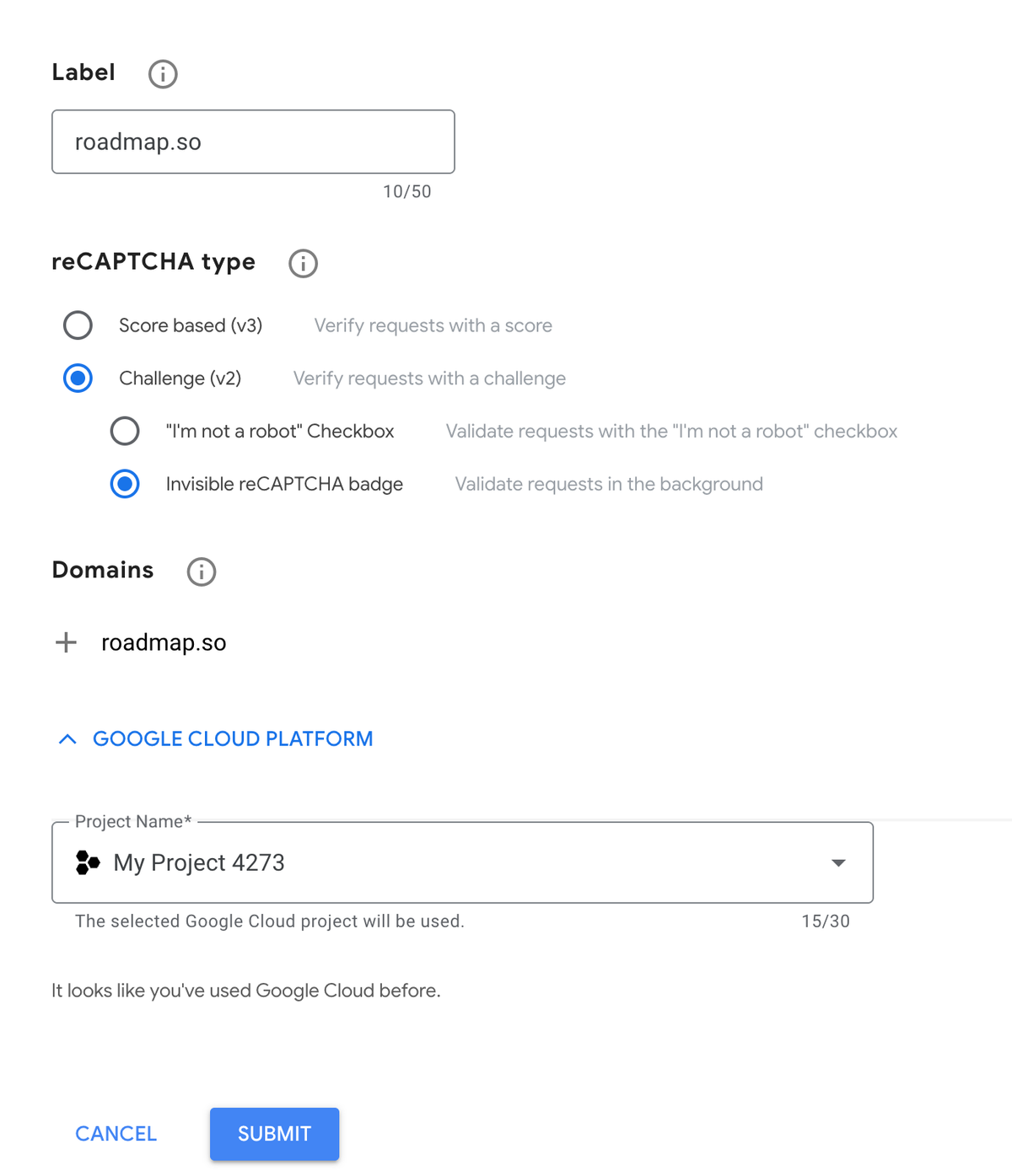
Use Challenge (v2) with Invisible reCAPTCHA badge.
Do not use Score based (v3) or I'm not a robot checkbox.
Set up Invisible reCAPTCHA
Create the Google key pair
Open Google reCAPTCHA Admin.
Then set:
- Label to a clear store name or domain
- reCAPTCHA type to Challenge (v2)
- Sub-option to Invisible reCAPTCHA badge
- Domains to the storefront domain, without
https://orwww.
If the form can also load on a
.myshopify.comdomain or a staging domain, add those too.Leave the default Google Cloud project in place, accept the terms, then click Submit.
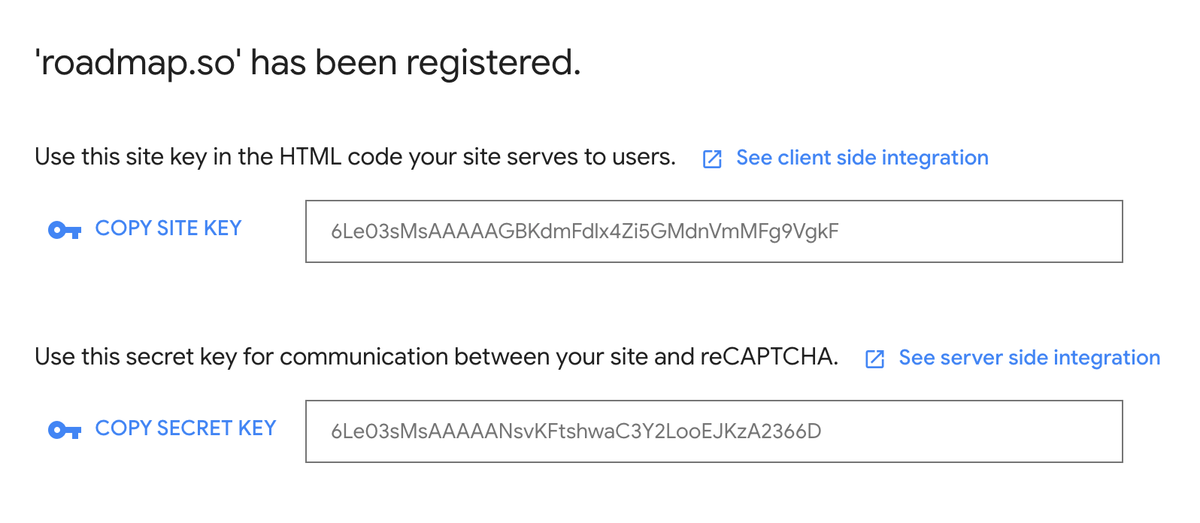
Copy both keys
Google gives you two values:
- Site Key — the public key used in the theme block
- Secret Key — the private key used in Roadmap settings
Keep this screen open while you complete the next steps.
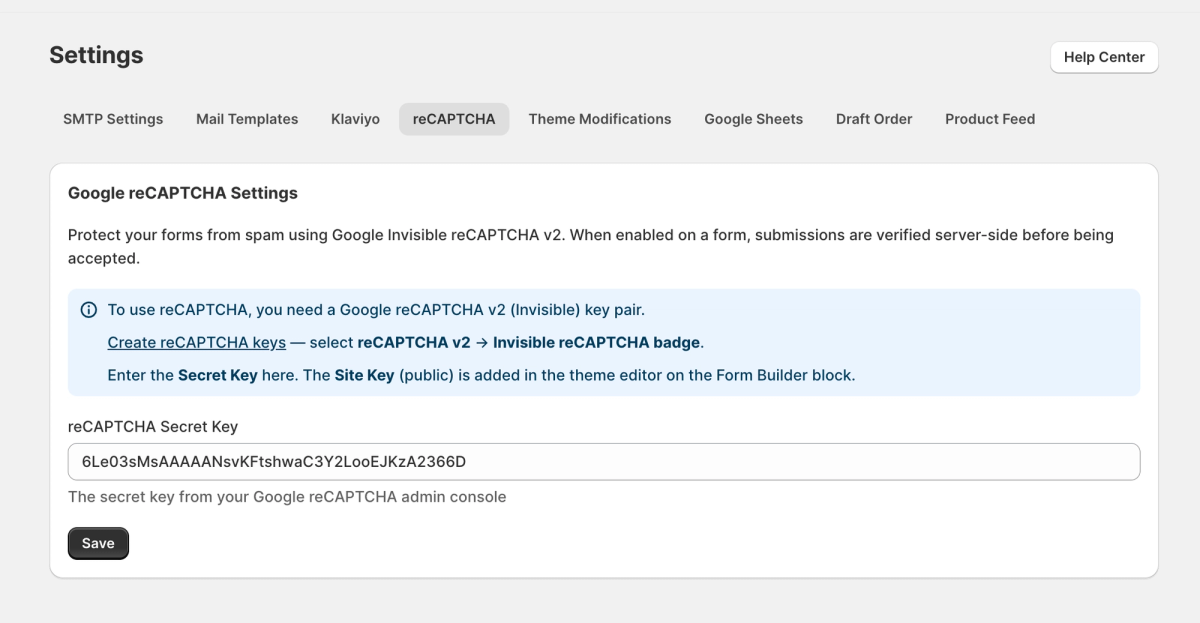
Add the Secret Key in Roadmap
In Roadmap, go to Settings → reCAPTCHA.
Paste the Secret Key into reCAPTCHA Secret Key, then click Save.
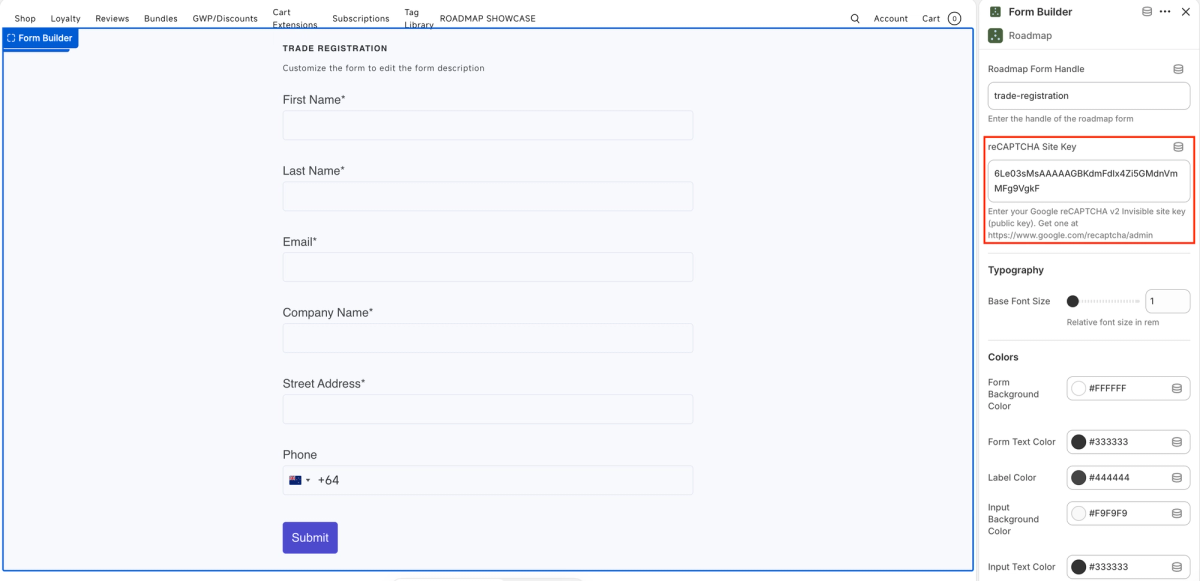
Add the Site Key in the theme block
Go to Online Store → Themes → Customize.
Open the page or template that contains the form, then select the Form Builder block.
Paste the Site Key into reCAPTCHA Site Key, then save the theme.
Enable spam protection on the form
In Roadmap, open Forms.
Open Settings for the form you want to protect.
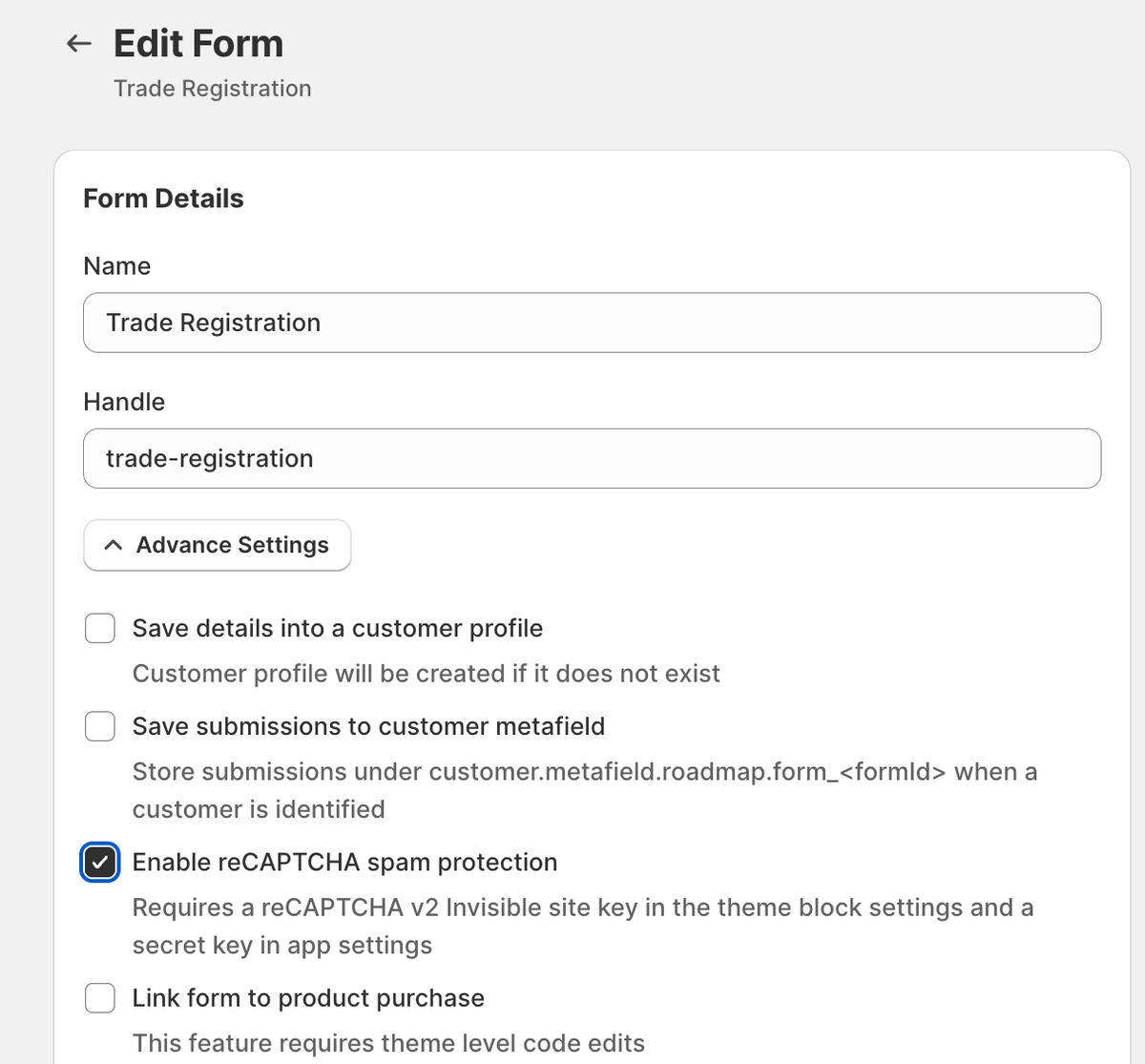
Expand Advance Settings, check Enable reCAPTCHA spam protection, then save the form.
Repeat this step for each form that should use reCAPTCHA.
Test the live form
Open the form in a private browser window.
Submit a real test entry.
Then confirm:
- the submission is accepted
- the entry appears in Roadmap
- the reCAPTCHA badge appears on the page


Key placement rules
Keep these rules straight:
- Secret Key goes in Roadmap → Settings → reCAPTCHA
- Site Key goes in the Form Builder theme block
- the form still needs Enable reCAPTCHA spam protection turned on
The most common setup mistake is swapping the two keys.
Troubleshooting
The form submits fail or get rejected
Check these first:
- the Site Key and Secret Key were not swapped
- both keys were saved
- the form has Enable reCAPTCHA spam protection turned on
- the domain in Google matches the domain where the form is loading
Spam protection still does not run
Check whether the setting was enabled on the specific form.
Keys alone do not turn on protection.