

Block customers from the loyalty program
Keep chosen customers out of your loyalty program with a Shopify customer tag: what changes for them, what they see, and how to bring them back.
Some customers shouldn't take part in your loyalty program, for example staff, wholesale buyers who order through your D2C store, or a customer who has asked to opt out. The Loyalty Blocklist keeps them out using a Shopify customer tag, so you can add or remove someone just by tagging them in Shopify.
Set up the blocklist
Open the Loyalty Blocklist
Go to Loyalty Program → Points. The Loyalty Blocklist card sits above Program Status.
Add your blocklist tags
In Blocklisted customer tags, enter the tag or tags you want to use, for example
no-loyalty, then click Save. Capitalization doesn't matter, soNo-Loyaltyandno-loyaltyare treated the same.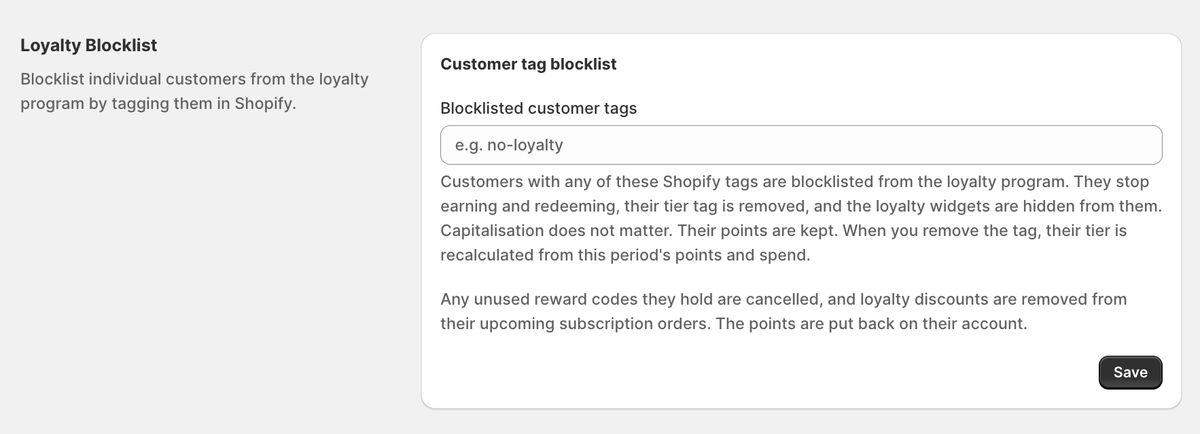
Tag the customers in Shopify
In Shopify, open the customer and add one of your blocklist tags. To block several customers at once, use Shopify's bulk editor or a customer import. See Shopify's guide to adding tags to customers.
What happens to a blocklisted customer
As soon as a customer has one of your blocklist tags:
- They stop earning and redeeming points.
- Their tier tag is removed, so tier perks tied to that tag stop applying.
- Their points are kept. The balance stays on their account, ready if you bring them back.
- Unused reward codes are cancelled, and loyalty discounts are removed from their upcoming subscription orders. The points for those rewards are put back on their account.
- In Klaviyo,
roadmap_has_accountis set to false, so they drop out of loyalty flows and segments that check for a loyalty account. See Loyalty profile properties and email snippets.
In Manage Customers, a blocklisted customer is marked as blocklisted, including in place of their tier, so it's clear they aren't in a tier while blocked.
What the customer sees
A blocklisted customer sees a short message instead of your loyalty program:
- The loyalty banner stays, with its buttons and accordion hidden, and shows the blocklisted message: Loyalty unavailable. Your account isn't eligible for our loyalty programme. Please contact us if you have any questions.
- The other loyalty blocks are hidden. On a page that has no loyalty banner or dashboard, the first loyalty block shows a Loyalty unavailable notice instead, so the customer isn't left with an empty space.
- The loyalty dashboard in their customer account shows the same message as a callout.


Change the blocklisted message
You can write your own wording, for example to point customers to your wholesale program or support email. Open the Loyalty banner block in the loyalty widget editor (see Customize the loyalty widgets) and find the Blocklisted message card:
- Title: leave blank to use the default, Loyalty unavailable.
- Subtitle: leave blank to use the default, Your account isn't eligible for our loyalty programme. Please contact us if you have any questions.
Click Save. Switch the preview to Logged in to check how it looks.

Bring a customer back
Remove the blocklist tag from the customer in Shopify. They can earn and redeem again, and their tier is recalculated from this period's points and spend.
Because points are kept while a customer is blocked, they come back with the same balance they left with.
Good to know
- The tag is the switch. There's no separate list to manage in Roadmap. Whoever has a blocklist tag in Shopify is blocked, and removing the tag unblocks them.
- Imports respect the blocklist. A blocklisted customer in a loyalty import is still imported, and the tag keeps them out of the program. See Import loyalty customers.