

Connect AI assistants to Roadmap (MCP)
Connect Claude Code, Cursor and other AI assistants to Roadmap with an API key, choose what each key can do, and let the assistant look up data and set up loyalty, discounts, bundles, forms and more.
Roadmap's MCP (Model Context Protocol) connection lets an AI assistant work with your Roadmap data and settings. Ask in plain language and the assistant looks things up, prepares the change, and links you to the matching screen in Roadmap to check it.
You connect an assistant with an API key that you create in Roadmap. Each key has its own permissions, so you decide which parts of Roadmap it can see and change. Set it up in Settings → MCP (AI Agents).
MCP is included on every Roadmap plan. A key can only use the features on your plan, so the permissions you can choose depend on which Roadmap features you have.
Things you can ask
"Create a form with name, email and company fields, and give me the link to review it."
"Set up a 15% off discount for the summer collection as a draft, limited to one use per customer."
"Which loyalty members have more than 5,000 points, and how many unused coupons do they have?"
"Make the loyalty banner background match our brand navy."
Create an API key
Open the MCP settings
In Roadmap, go to Settings → MCP (AI Agents). The page has an API keys card and a How to connect card.
Name the key and choose its permissions
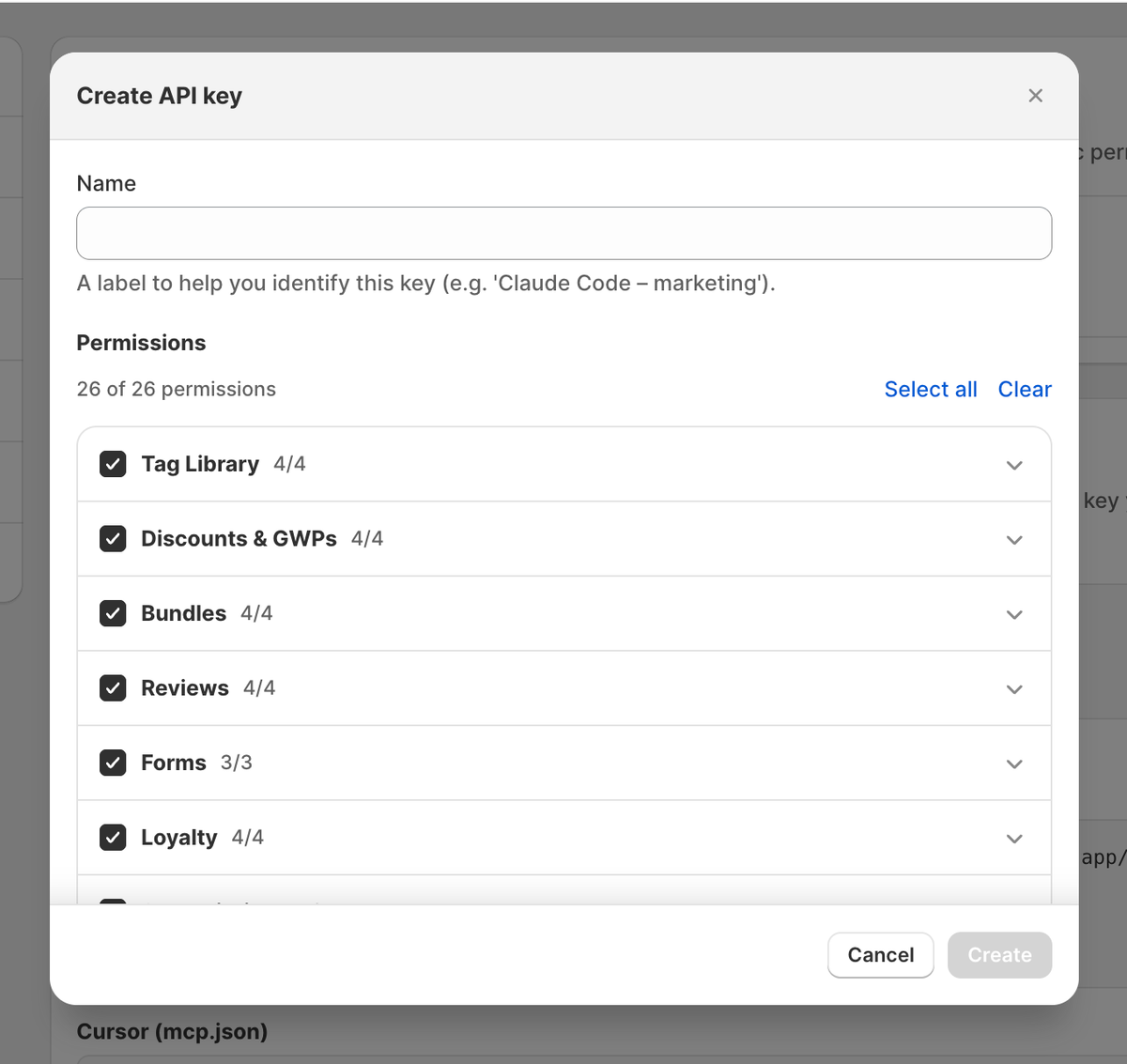
Click Create API key in the API keys card. In Create API key:
- Name: a label to help you identify the key, for example Claude Code marketing.
- Permissions: every permission starts ticked. Untick an area to remove all of its permissions, or expand it to untick individual ones. Select all ticks everything and Clear unticks everything. The count above the list shows how many are ticked.
Only the permissions for features on your plan are listed. Click Create.
Copy the key now
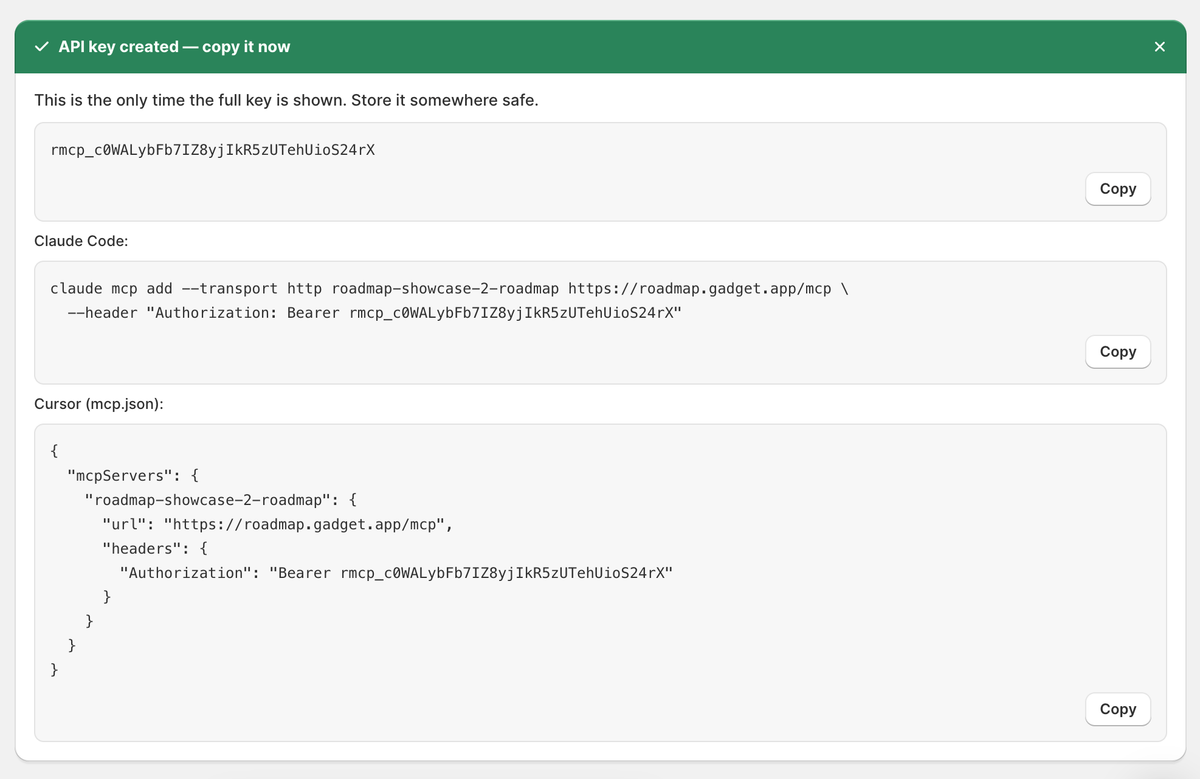
Roadmap shows your new key with the message This is the only time the full key is shown. Store it somewhere safe. Below the key are the Claude Code and Cursor (mcp.json) setups with your key already filled in. Click Copy next to the key, or next to the setup for your tool.
You can't see the full key again after you close this message. If you lose it, delete the key and create a new one.
The API keys card then lists the key with its name, the start of the key, how many permissions it has, and the areas it covers.


Connect your assistant
If you copied a setup when you created the key, paste it into your tool and you're done. Otherwise, use the How to connect card, which has ready-to-copy setup for each tool with your store's details filled in. Click Copy next to the one you need:
- Endpoint URL: the address to give any MCP-compatible tool. The line below it shows how to send your key.
- Claude Code: a command to paste into your terminal.
- Cursor (mcp.json): settings to paste into Cursor's
mcp.jsonfile.
Replace <YOUR_API_KEY> in the snippet with your key, then start a new conversation in your tool.

The Claude.ai and ChatGPT web apps can't use API keys yet. Use Claude Code, Cursor, or another tool you use with a configuration file.
Permissions
Permissions are grouped by area, in the order the Create API key window lists them. You only see the areas for features on your plan.
| Area | Permissions | What they allow |
|---|---|---|
| Tag Library | View tags, Create & edit tags, Publish tags, Delete tags | Find Tag Library tags and their rules, create and edit them, put them live or take them down, and delete them. |
| Discounts & GWPs | View campaigns, Create & edit campaigns, Publish campaigns, Delete campaigns | Find discount and gift with purchase campaigns, create and edit them, put them live or take them down, and delete them. |
| Bundles | View bundles, Create bundles, Publish bundles, Delete bundles | Find bundles and their products, create them, put them live or take them down, and delete them. |
| Reviews | View reviews, Reply to reviews, Moderate reviews, Delete reviews | Find reviews, questions and store reviews, reply to them, publish, hide or pin them, and delete them. |
| Forms | View forms & submissions, Create & edit forms, Delete forms | Find forms and read their submissions, create and edit forms, and delete them. |
| Loyalty | View loyalty, Manage customers, Configure program, Publish loyalty rules | Look up members, balances and coupons; adjust points, change memberships, approve or reject pending adjustments and refund unused coupons; set up ways to earn, ways to redeem, VIP tiers, customer rewards, the referral program and loyalty settings; and put loyalty rules live. |
| Subscriptions | View subscriptions | Read the subscription list, a subscription's details, timeline and orders, and a customer's subscription history. Subscriptions are read only. |
| Widget styling | View & edit widget styling | Read and change the styling, text and custom CSS of your Roadmap storefront blocks, the same settings you have in the admin. |
| Analytics | View reports | Loyalty, referral, review, subscription, churn, discount and bundle reports. |
Give each key only what it needs:
- Reporting only: clear everything, then tick Analytics, plus the View permissions for any areas you want it to look up.
- Drafts only: leave the Publish permissions unticked. The assistant can prepare campaigns, bundles, tags and loyalty rules as drafts, and you put them live yourself in Roadmap.
- No deleting: leave the Delete permissions unticked.
A separate key per person or tool also lets you delete one without affecting the others.
How changes stay safe
- New campaigns, bundles, tags, ways to earn, ways to redeem and customer rewards are created as drafts. They only go live when you ask the assistant to publish them, or publish them yourself in Roadmap.
- Before it creates a discount or saves changes to a form, the assistant shows you a preview to confirm.
- The assistant links to the matching Roadmap screen so you can check the result.
- Point adjustments and new VIP tiers take effect straight away. A single point adjustment is limited to 1,000,000 points either way, the same limit as the admin.
- An assistant can reply to, hide or pin a review, but it can't change a review's rating, text or verified badge.
Things to know
- Treat an API key like a password: anyone who has it can do whatever its permissions allow in your store.
- You can delete a key at any time from the API keys card.
- A key only works for the store it was created in.
Why are some permissions missing from the list?
The list only shows permissions for the features on your plan. To use another area, add that feature to your Roadmap plan.
I lost my API key. Can I see it again?
No. The full key is only shown once, when you create it. Delete the old key from the API keys card and create a new one, then update your tool with the new key.
Can I connect ChatGPT or Claude.ai in the browser?
Not yet. The Claude.ai and ChatGPT web apps can't use API keys. Use Claude Code, Cursor, or another tool you set up with a configuration file.
What's the difference between this and Sidekick?
Sidekick is Shopify's assistant inside the Shopify admin. It reads your Roadmap data with no setup, but it never changes anything. An MCP connection works from your own AI tool and, depending on the key's permissions, can also create and change things in Roadmap.
Related guides
- Sidekick Integration: ask Shopify's assistant about your Roadmap data
- How the Universal Styler works: the styling settings an assistant can change