

Clear loyalty membership data
Reset customers' points, tiers and loyalty history so they start your program from zero, choose what else is cleared, and download a backup of everything removed.
Relaunching your loyalty program from zero, or removing test activity before you go live? Clear Membership Data removes customers' points, tiers and membership dates, in Roadmap and in Shopify, so they start again as new members. You choose what else is cleared, such as timeline entries, unused reward codes and Klaviyo profiles, and you get a backup of everything removed.
Clearing deletes loyalty data for every customer in the clear. Read the review screen carefully before you confirm, and download the backup when the clear finishes.
Before you start
- Pause earning if you want to clear everyone. If your program is running, customers can still earn points while the clear runs. Anyone who earns during the clear is skipped and keeps all their data. To clear everyone, move your program start date to tomorrow first. See Program status, start date, and tester domains.
- B2B company members are skipped. A company owns its members' loyalty, so they aren't cleared here. See Managing companies and their loyalty.
Clear membership data
Open Clear Membership Data
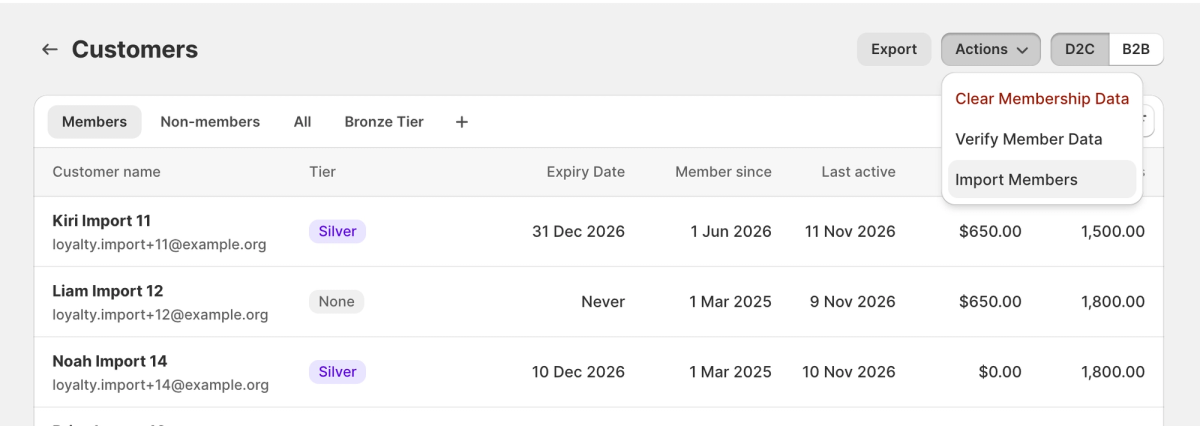
In Roadmap, go to Loyalty Program > Customers, open Actions and click Clear Membership Data.
Choose which customers to clear
Pick one option, then click Check what will be cleared. Nothing is cleared until you confirm on the next step.
- Customers in a CSV file: clears only the customers in your file. Use an
emailorcustomer_idcolumn. Blank rows are skipped. - Every customer in the store: clears every customer who has loyalty data.
Screenshot: Clear Membership Data, choose which customers to clear, with Customers in a CSV file and Every customer in the store (Thom's shot 24 Nov 9.25.49 PM).
- Customers in a CSV file: clears only the customers in your file. Use an
Review what will be cleared
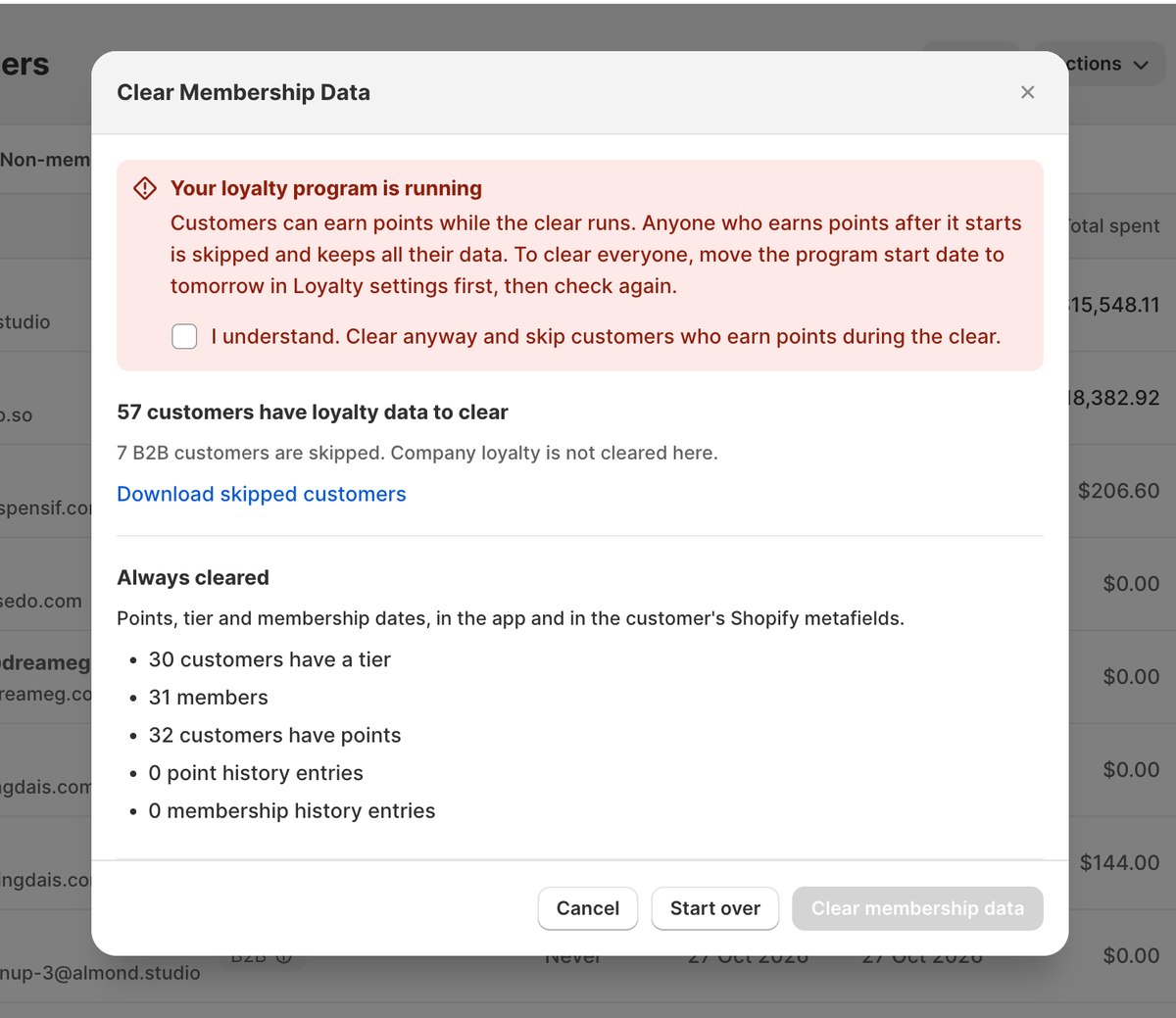
The review screen shows how many customers have loyalty data to clear, how many B2B customers are skipped, and exactly what will be removed. Click Download skipped customers to see who is left out. To change which customers are cleared, click Start over.
If your program is running, a warning explains that customers who earn points during the clear are skipped. To go ahead anyway, tick I understand. Clear anyway and skip customers who earn points during the clear.
Choose what else to clear
Points, tiers and membership dates are always cleared. Tick the other items you want removed under Also clear. Each option shows how many customers or entries it affects. See What can be cleared below.
Click Clear membership data
The clear runs in batches and shows how many customers have been cleared so far. You can close the window: the clear keeps running, and opening Clear Membership Data again shows the progress.


What can be cleared
Always cleared
- Points, tier and membership dates, in the app and in the customer's Shopify metafields. This includes each customer's point history and membership history.
Also clear
- Timeline: entries in the customer's loyalty timeline.
- Pending point adjustments: including any waiting for approval.
- Unused loyalty coupons: reward codes customers haven't used yet are cancelled in Shopify, so they can no longer be used.
- Clear all loyalty analytics: referral emails and sales, and Customer Reward uses. Orders are kept.
- Tier and reward tags: only tags customers have now. Tags that give a tag-based tier and blocklist tags are kept.
- Referral: who referred the customer.
- "Already sent" flags: reminder and birthday award flags, so these emails and awards can happen again.
- Klaviyo profiles: profiles are updated to show no points and no tier. See Loyalty profile properties and email snippets.
- Birthday: the birthdays customers have saved.
- Let customers earn signup points again: customers who already received the sign-up bonus can earn it again the next time they log in, including customers with a legacy Shopify account.
- Stop orders placed before today from earning: because point history is deleted, an old order would otherwise earn points again when it is edited or fulfilled. This option moves the start date of your Place an order rules to today. The review screen lists each rule it changes.
Which options to tick
- Relaunching for the same customers? Keep Birthday unticked so customers don't have to enter it again, and tick Let customers earn signup points again if you want everyone to get the welcome bonus on the new program.
- Tick Stop orders placed before today from earning unless you want past orders to earn under your new rules when they are edited or fulfilled.
- Tick Unused loyalty coupons so codes bought with the old points can't be spent after the reset.
Read your results
When the clear finishes, you see Membership data was cleared, the time it finished, and a count for everything removed, for example customers cleared, point history entries, timeline entries, coupons cancelled in Shopify, Klaviyo profiles updated and order rules moved to start today.

Two downloads sit under the counts:
- Download backup: a CSV with everything that was removed, including the previous start dates of any order rules that moved. Keep it safe: to restore the cleared data, import it in Loyalty Program > Customers > Actions > Import. See Import loyalty customers.
- Download skipped customers: a CSV of everyone left out, with
customer_id,emailand thereason, for example B2B customer. Company loyalty is not cleared.
The latest clear stays on this screen when you come back to it. To run another, click Start a new clear.
Why does a customer still have points after the clear?
Check Download skipped customers. B2B company members are never cleared, and if your program was running, customers who earned points during the clear were skipped and kept all their data. Run a new clear for them once earning is paused.
Why does a customer still have a tier tag in Shopify?
Tags that give a tag-based tier and blocklist tags are always kept. Other tier and reward tags are only removed when Tier and reward tags is ticked.
Why did fewer customers clear than the review screen showed?
Customers who earned points while the clear was running are skipped. They appear in Download skipped customers.
I cleared the wrong customers. Can I undo it?
Yes. Go to Loyalty Program > Customers, open Actions, click Import and upload the backup CSV from that clear. The data that was removed is restored.