

Enable image display in the PDP review widget
Show customer-uploaded images in the PDP widget and control how they appear.
Customer-uploaded images can appear automatically in the PDP widget.
Use the Images settings inside PDP Block to show, hide, and style them.
Before you start
Make sure these are true first:
- you are editing Product Reviews
- customers are submitting reviews with images
- you are in Roadmap App Admin, not the Shopify theme editor
Enable images in the PDP widget
Open the review widget editor
In Roadmap, go to Reviews → Review Form.
At the top, select Product Reviews.
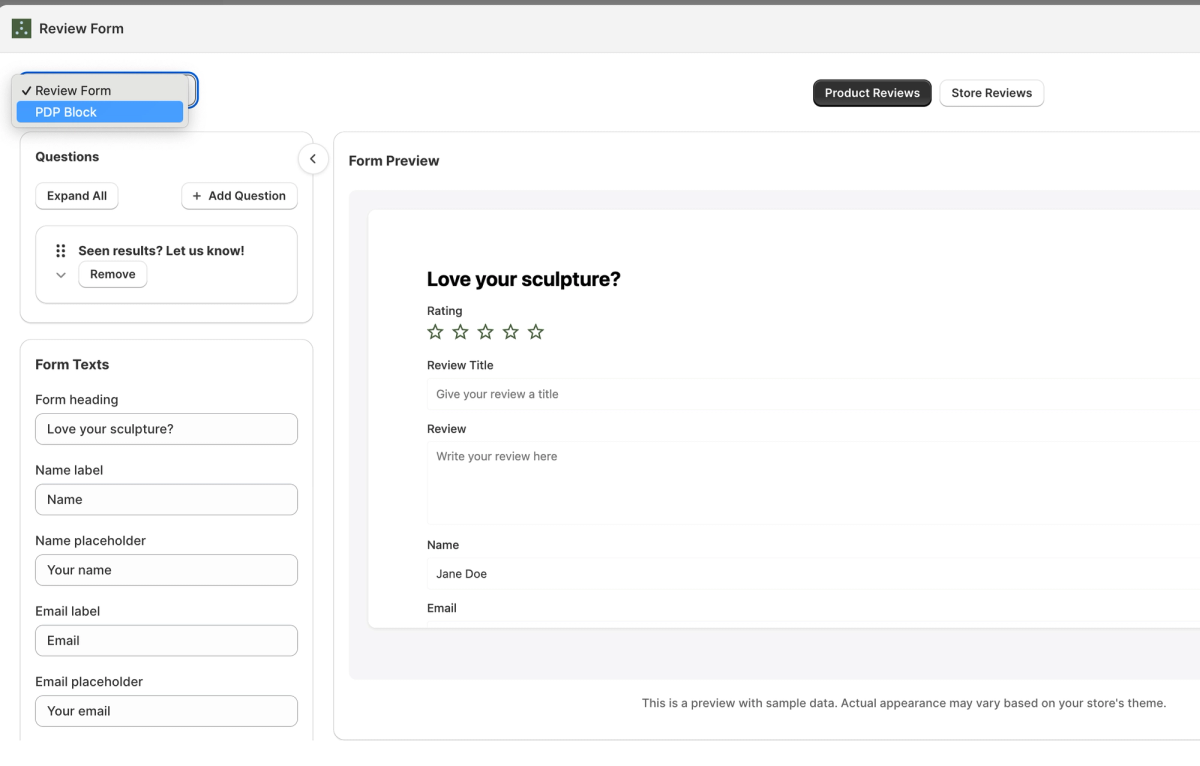
Switch to PDP Block
Open the dropdown in the top-left.
Select PDP Block.
This opens the design settings for the product page review widget.
Open the Images section
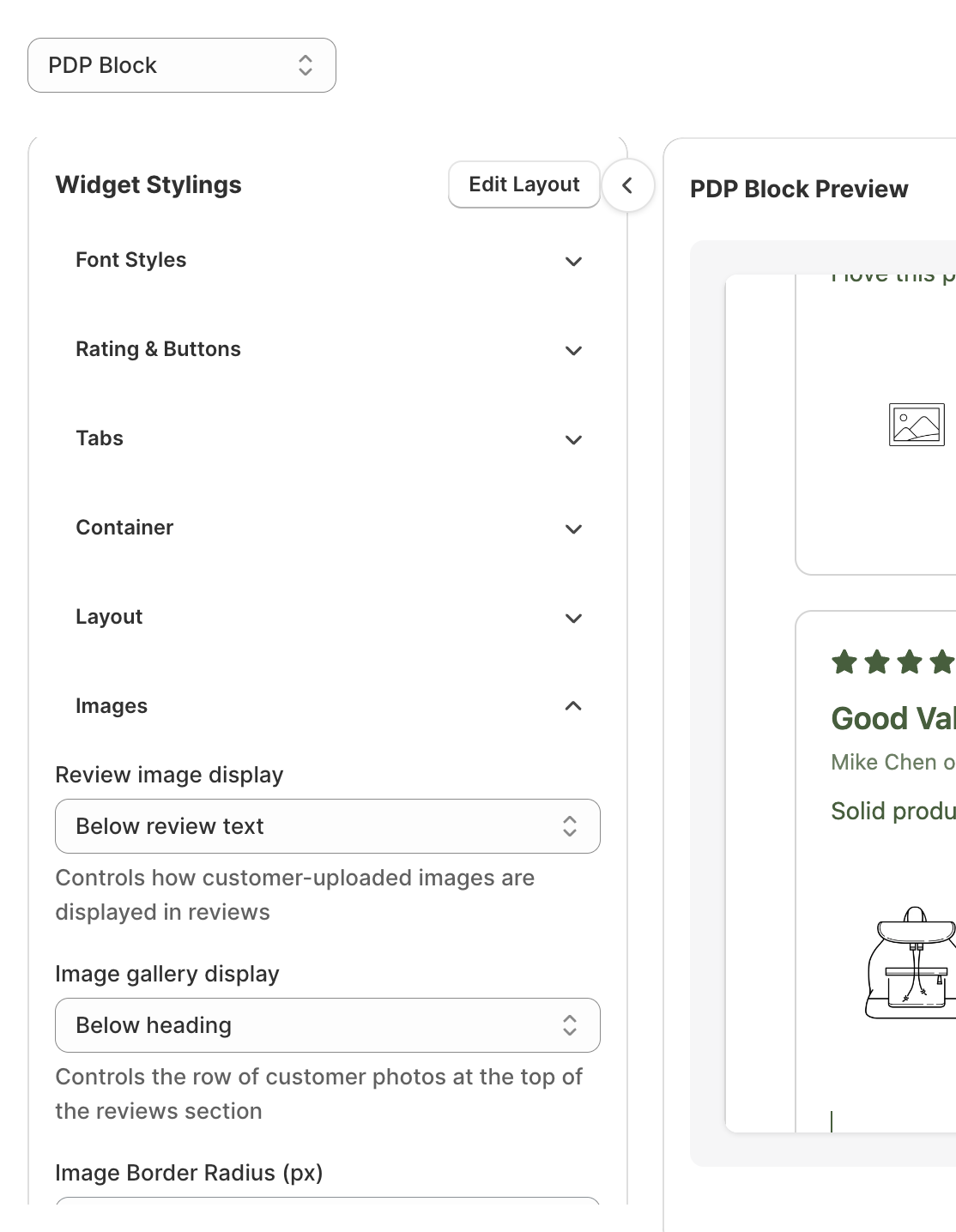
In Widget Stylings, expand Images.
This section controls both in-review images and the image gallery.
Choose how review images display
Set Review image display to one of these options:
- Below review text
- Side-by-side
- Hidden
If customers have uploaded images, they appear in the review preview immediately.
Choose how the gallery displays
Set Image gallery display to one of these options:
- Below heading
- In line with heading
- Hidden
This controls the row of customer photos at the top of the reviews section.
Adjust the image styling
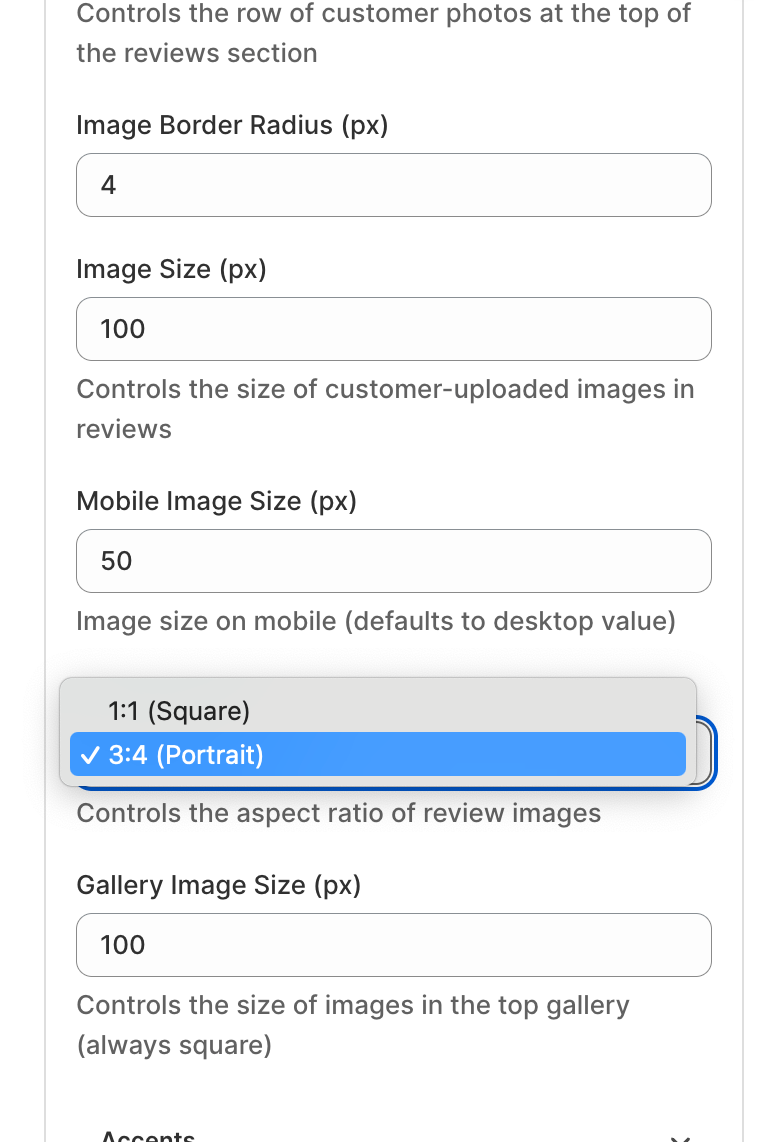
Use the remaining controls to style the images:
- Image Border Radius (px) controls the corners for both review images and gallery images
- Image Size (px) controls image size inside each review on desktop
- Mobile Image Size (px) controls image size on mobile
- Image Aspect Ratio controls the review image crop, such as 1:1 (Square) or 3:4 (Portrait)
- Gallery Image Size (px) controls the size of the gallery thumbnails
Preview and save
Use the live preview on the right as you make changes.
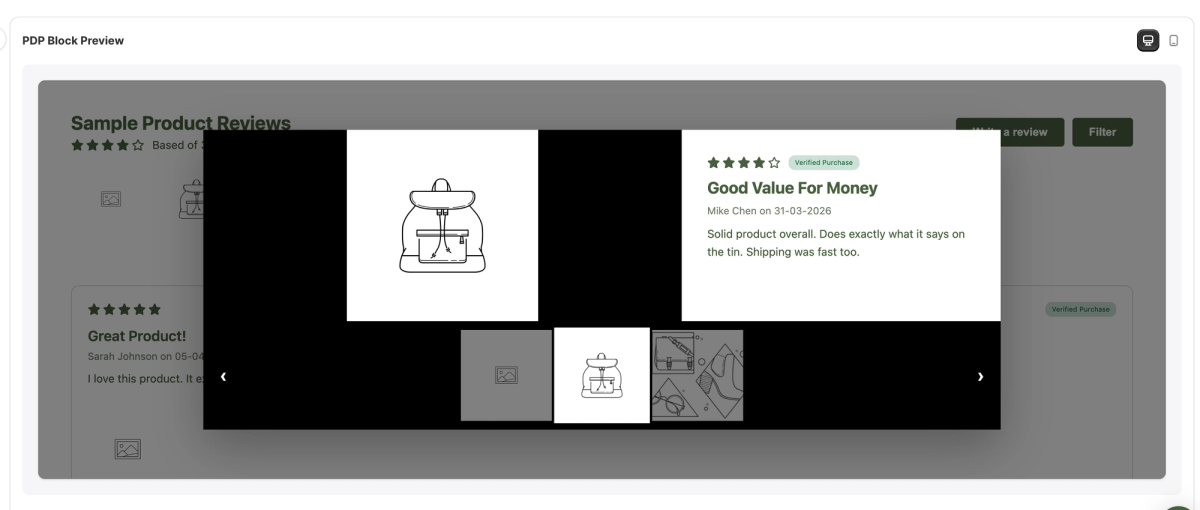
You can click gallery images in the preview to open the image popup.
When you are happy with the result, click Save.


Troubleshooting
Why don’t I see any images?
Check these first:
- you are editing Product Reviews
- the top-left dropdown is set to PDP Block
- Review image display is not set to Hidden
- Image gallery display is not set to Hidden
- your reviews actually include customer-uploaded images
Can I hide images without turning off photo capture?
Yes. Set Review image display or Image gallery display to Hidden.
This only changes storefront display.
Do changes show immediately while I edit?
Yes. The preview updates in real time.
You can also click gallery images in the preview to test the popup.
But you need to 'save' your edits for the changes to populate onto the storefront widget.