

Import subscriptions from a CSV
Bring existing subscription contracts into Roadmap: the standard CSV format, pulling straight from Recharge, and what the two update options change.
If you are moving to Roadmap from another subscription app, or you keep contracts somewhere else, the importer creates the subscription contracts in Shopify for you from a CSV.
Find it in Subscriptions → Actions → Import Subscriptions. The page is titled Import Subscriptions, and it handles both the upload and the history of every import you have run.

Two ways to get your file
- Coming from Recharge: pull your subscriptions straight out of Recharge, already formatted. See below.
- Coming from anywhere else: export your subscriptions from your current app and map them into Roadmap's standard CSV format, using the template below.
The standard CSV format
Download the CSV template. It contains one example row so you can see how a product line is filled in. Delete that row before you import your own subscriptions.
One row is one product line, not one subscription. A contract with three products takes three rows, all sharing the same subscription_id. This is why an import of 26 rows can report only 13 subscriptions.
Values are case sensitive. Enter status and order_interval_unit in capitals exactly as shown below, or those rows will not import.
Identifying the subscription
| Column | What goes in it |
|---|---|
subscription_id | Your existing subscription reference. Repeat it on every row belonging to that contract. |
customer_id | The Shopify customer ID. |
customer_email | The customer's email address. |
Status and schedule
| Column | What goes in it |
|---|---|
status | The contract's state, Roadmap supports ACTIVE, PAUSED and FAILED. Cancelled contracts cannot be imported into Roadmap, they will be skipped if included in the import. |
next_billing_date | The next charge date, as YYYY-MM-DD. A date in the past is moved forward to the next future date. |
order_interval | The number part of the frequency, for example 3. |
order_interval_unit | The unit, for example MONTH. Together with the interval this gives every 3 months. |
Products and pricing
| Column | What goes in it |
|---|---|
product_id | The Shopify product ID. |
variant_id | The Shopify variant ID. Products are matched on this, never on row order. |
quantity | Units of this product per delivery. |
currency_code | The currency, for example NZD. |
recurring_price | What this line charges each cycle. |
delivery_price | The shipping charge on the contract. |
properties | Line item properties, if you use them. |
Delivery
| Column | What goes in it |
|---|---|
delivery_method | How the order is fulfilled, for example shipping. |
shipping_first_name, shipping_last_name | The recipient's name. |
shipping_address_1, shipping_address_2 | Street address. |
shipping_city, shipping_province_code, shipping_zip | The rest of the address. |
shipping_country_code, shipping_country | For example NZ and New Zealand. |
shipping_phone | Optional for shipping, but required for local delivery, because Shopify makes it mandatory. |
shipping_code | The name of the shipping rate, for example Free Shipping Over $99. Store pickup does not need one. |
Payment
| Column | What goes in it |
|---|---|
payment_processor | For example shopify_payments. |
payment_customer_id | The processor's customer reference. |
payment_method_id | The saved payment method token. |
Payment methods from a non-Shopify gateway cannot be carried across. Those contracts still import, keep the payment method they already have, and are reported as Payment method not migrated. Ask those customers to update their details afterwards.
Coming from Recharge
If Recharge is your current app you do not need to build the file at all.
Get an API token from Recharge
In Recharge, go to Integrations → API Tokens and create a token. It needs these permissions:
read_subscriptionsread_payment_methodsread_customersread_orders
Download your subscriptions
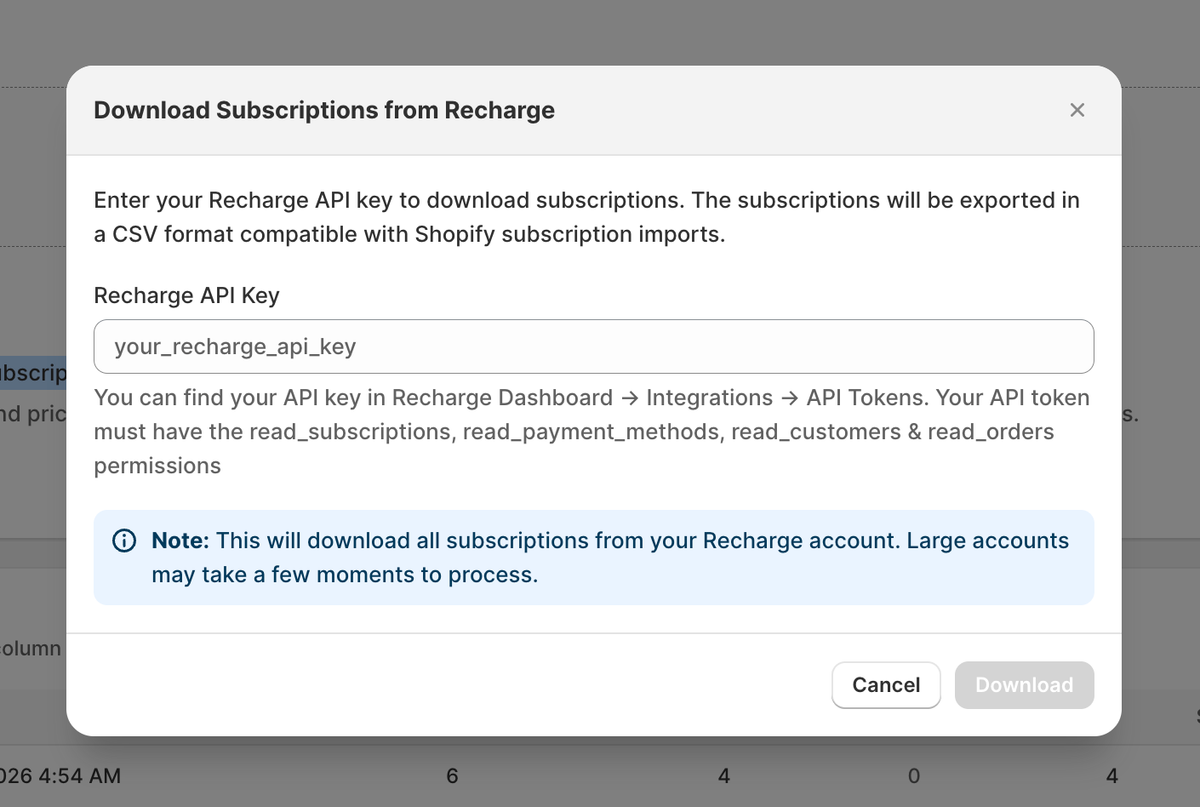
On the Import Subscriptions page, open Actions → Download from Recharge, paste the API key, and click Download.
This pulls every subscription in your Recharge account and exports it as a CSV already formatted for Shopify subscription imports. Large accounts take a few moments.
Check the file before you upload it
Open the CSV and spot-check it against Recharge: customers, products, quantities, prices, and billing dates. It is much easier to correct the file now than to correct live contracts afterwards.

Run the import

Add your file
Under Upload CSV File, click Add file and choose your CSV.
Choose what the import is allowed to change
Two checkboxes sit under the upload area:
- Update existing subscription data. On by default. Lets the import update contracts that already exist rather than only creating new ones.
- Also update products on existing subscriptions. Off by default. In the app's words, this changes the products, quantities and prices on subscriptions that already exist, to match the CSV. Leave it off unless you are migrating products.
Click Import
The Import button becomes available once a file is attached. Progress runs while the import works, and the job then appears in Import History.
See Understanding your import results to read the numbers it reports.
Only one import runs per store at a time. If an import is already in progress, a second upload is blocked until it finishes.
How to update products in existing subscriptions
With Also update products on existing subscriptions ticked, the import can swap, add and remove products on contracts that already exist, and change quantities and recurring prices per line.
A few things are worth knowing before you use it:
- If the import cannot tell which product replaces which, it refuses that subscription rather than guessing. The contract keeps its existing products untouched and the reason is reported against it.
- A contract with several products spans several rows in the CSV, so one contract changing two products counts as two product line changes.
Leave the option off if you only want to correct billing dates, frequencies or statuses. Products then stay exactly as they are.
Billing dates and frequencies
- A billing date in the past is moved forward to the next future date, so an imported contract does not immediately try to bill for a cycle that has already passed.
- If you import two rows for the same subscription and the next billing dates do not match, the import warns you rather than silently picking one.
The other Actions
The Actions menu on the Import Subscriptions page also holds:
- Verify Import, which compares your CSV against what is now live in Shopify. Run it after a large migration.
- Run payment method sync, this action swaps any expired cards that are currently attached to an active subscription and replaces it with a new active card if available.