

Split shipping rates between B2B and DTC customers
Show different Shopify shipping rates to B2B and DTC customers using Roadmap delivery customizations.
Use this setup when B2B customers should see different shipping rates from DTC customers.
Roadmap controls which Shopify shipping rates appear at checkout.
Shopify still controls the actual rate price, transit time, and shipping zones.
How it works
A customer counts as B2B when their account is linked to a Shopify company.
A customer counts as DTC when they are not linked to a company.
Roadmap checks the title of each Shopify shipping rate.
If the title contains your chosen keyword, Roadmap can show that rate to:
- all customers
- B2B customers only
- DTC customers only
The matching text sits inside the shipping rate title.
Customers can see that title at checkout.
Use clear wording such as B2B, Wholesale, or Trade.
Before you start
Make sure:
- Shopify B2B is set up and your B2B customers are linked to a company
- you know the keyword you want to use in your shipping rate titles
- you know which shipping profiles and zones need separate B2B rates
If you use more than one shipping zone, repeat this setup in each zone.
Step 1: Configure the delivery customization
Open Shopify shipping settings
In Shopify, go to Settings → Shipping and delivery.
Open Delivery customizations
Scroll down to Delivery customizations.
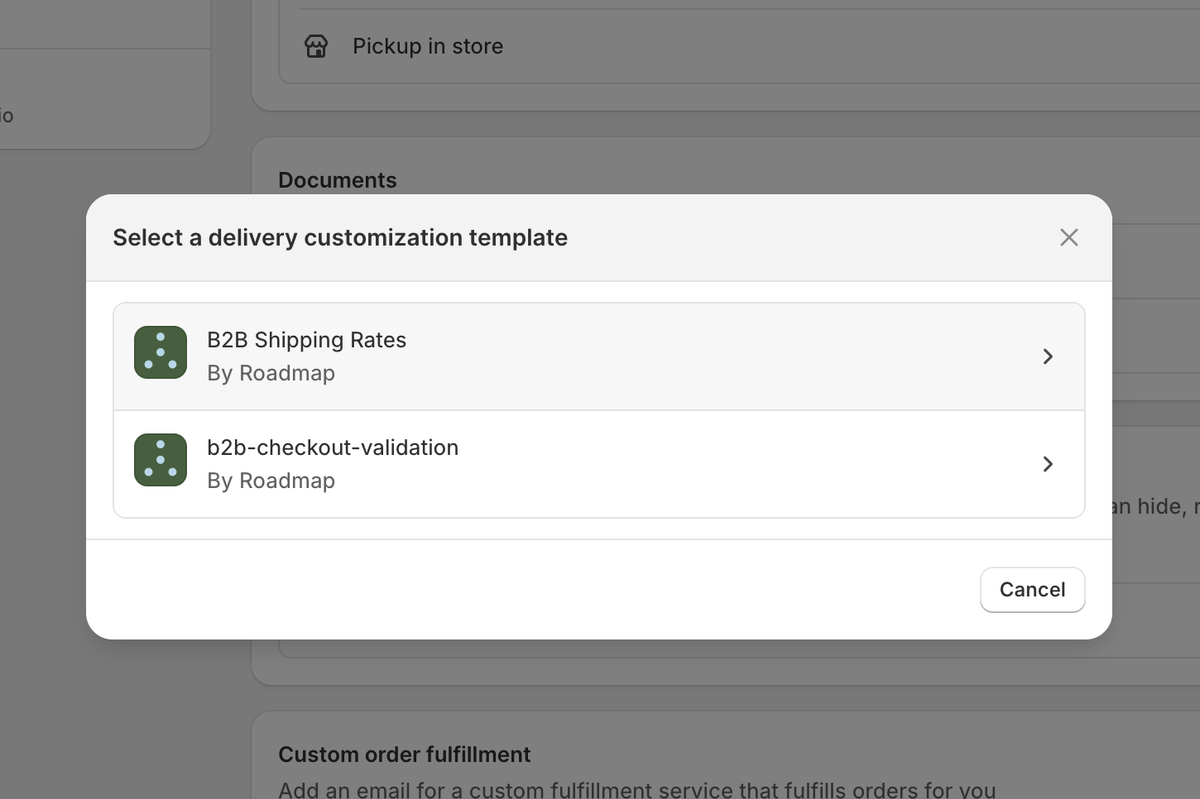
Add the Roadmap customization
Add B2B Shipping Rates by Roadmap.
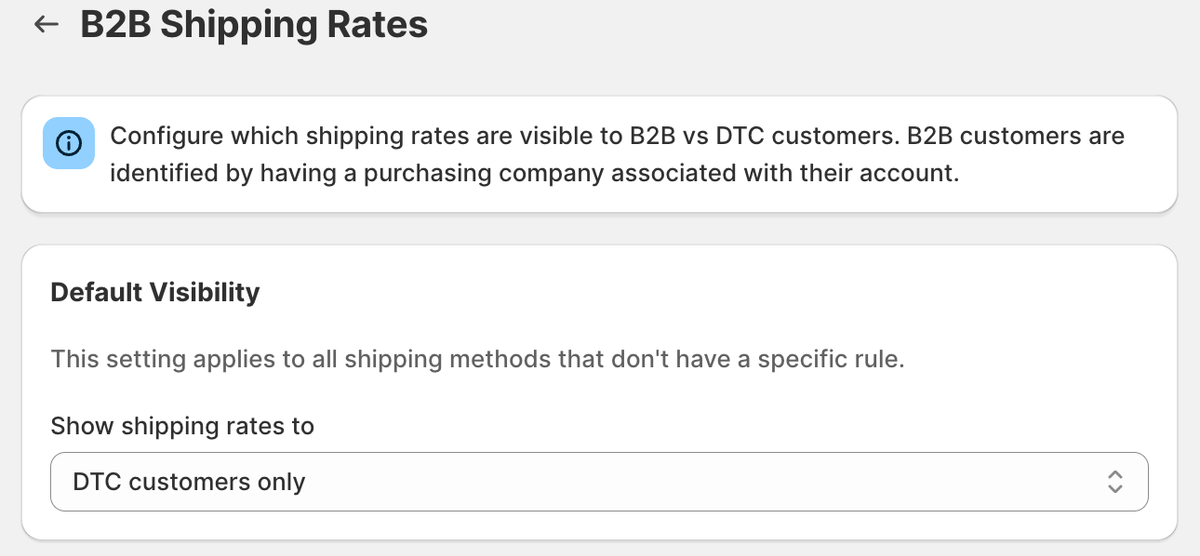
Choose who should see the matched rates
Choose one of these options:
- All customers
- B2B customers only
- DTC customers only
To split B2B and DTC shipping rates, choose DTC customers only.
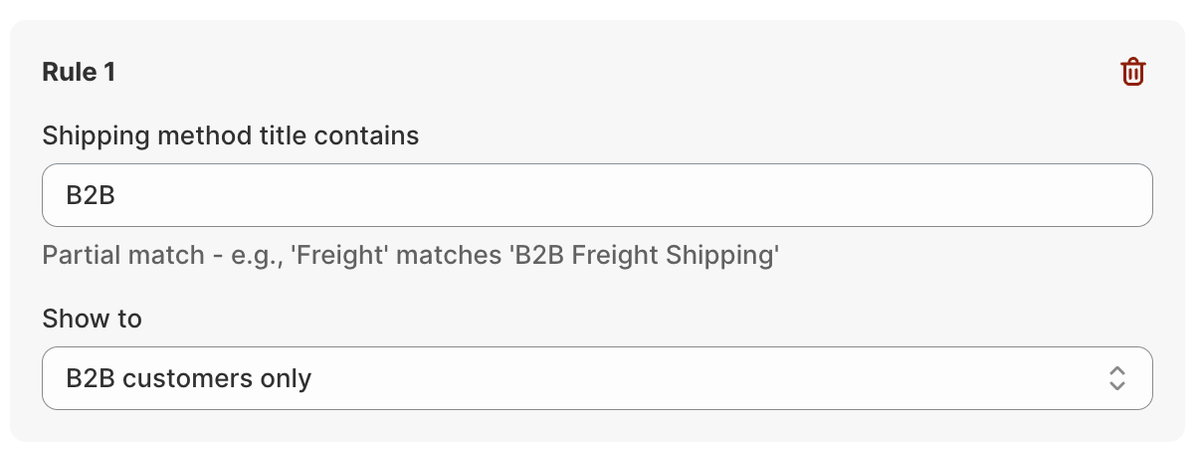
Enter the title match text
Enter the text that Roadmap should look for in the shipping rate title.
For example, use
B2B.Any Shopify shipping rate with
B2Bin the title will match this rule.Select to show to 'B2B customers only'
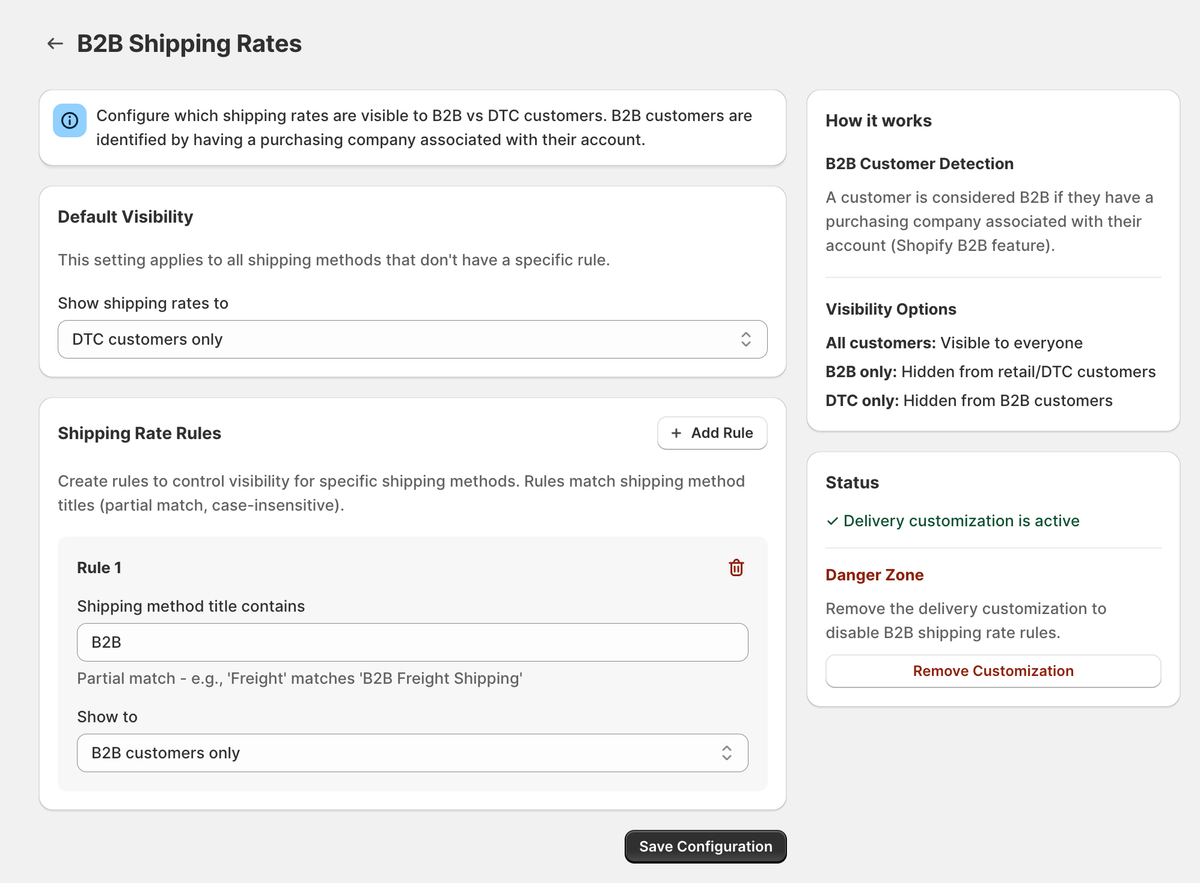
Save the configuration
Save the setup.


Step 2: Create the shipping rates in Shopify
After the customization is saved, create the actual rates in Shopify.
Open your shipping profile
In Settings → Shipping and delivery, open the shipping profile you want to update.
Choose a shipping zone
Open the zone where the B2B rate should apply.
If you use multiple zones, repeat this process for each one.
Add a shipping option
Click Add rate or Add shipping option.
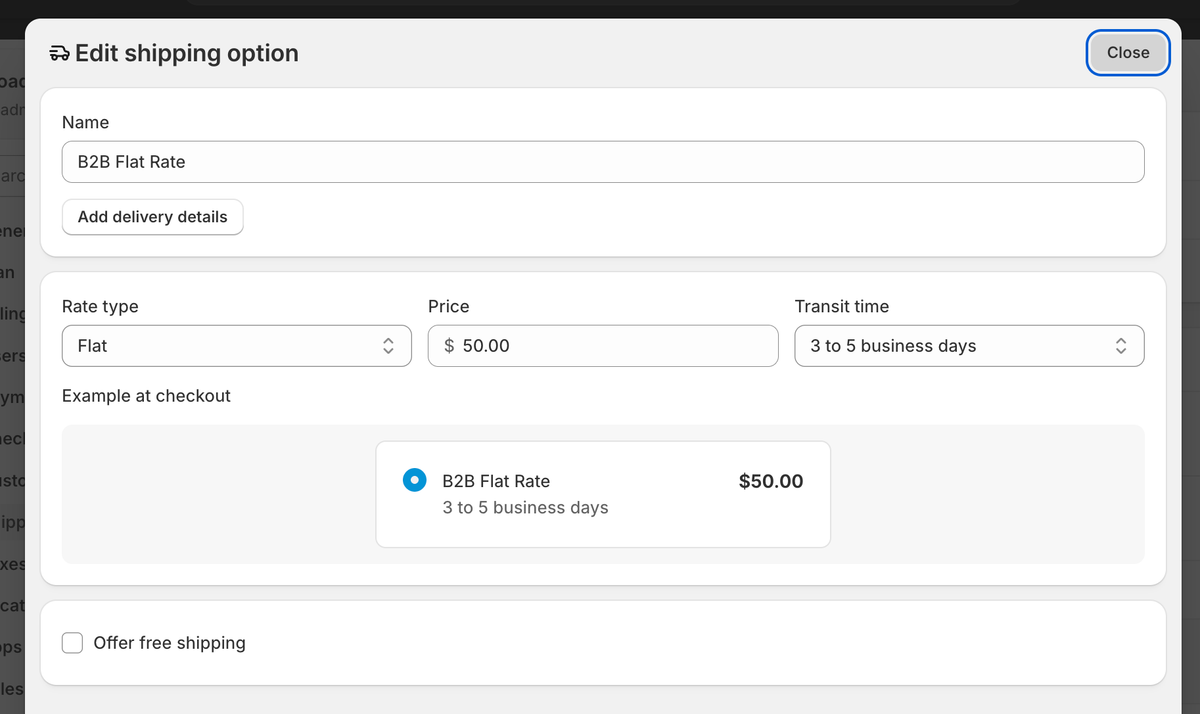
Put the keyword in the rate title
Add the same keyword you used in Roadmap to the shipping rate title.
Examples:
B2B Flat RateB2B Orders Under $500
Finish the rate setup
Set the usual Shopify shipping details:
- rate type
- price
- transit time
Then save the rate.
Add multiple rates if required
Repeat the process until all rates and profiles are covered.

Example split
A common setup looks like this:
Standard Shippingfor DTC customersB2Btitled rate for B2B customers
If Roadmap is set to B2B customers only with the keyword B2B:
- B2B customers see
B2B Flat Rateoptions only - DTC customers do not see
B2Brates and will see all other rates
This lets you keep standard rates for DTC while showing separate rates to trade customers.
Test the setup
Run both tests before going live:
- Test with a customer who is not linked to a company.
- Confirm they only see the DTC rates.
- Link that customer to a company.
- Test checkout again.
- Confirm they now see only the rates that contain your B2B keyword.

If the B2B rate only appears in one region, check the shipping zones first.
The rate must exist in every zone where you want B2B customers to use it.
Common mistakes
Check these first if the split is not working:
- the keyword is missing from the Shopify shipping rate title
- the test customer is not linked to a company
- the B2B rate was added to one zone but not the others
- the 'title contains' in incorrectly formatted in the shipping rate title (it is case sensitive)
- the rate title uses customer-facing wording that is unclear
Need DTC-only rates instead?
Use the same setup, but choose DTC customers only in the Roadmap customization.
Then create shipping rates with a DTC-specific keyword in the title.
Roadmap will show those matched rates only to customers who are not linked to a company.