

Setting up a Klaviyo post-purchase review flow (Less design restrictions)
Build a Klaviyo post-purchase review flow with item-count trigger splits, using the Roadmap: Eligible for Review Request trigger and a Review Submitted follow-up.
Use item-count splits to create review-request emails without a dynamic product table.

When to use an item-count flow
Create separate review-request emails based on purchased item count. This gives you more design flexibility.
You will need more Trigger split steps in the flow.
Most teams cap this approach at 3 items. More review requests can reduce completion rates.
About the trigger: Roadmap: Eligible for Review Request
Use Roadmap: Eligible for Review Request, not a Shopify order trigger. It fires when fulfilled orders contain review-eligible products.
This means:
- The flow starts at fulfillment. You do not need shipping checks.
- Only customers with reviewable products enter the flow.
An order or item is excluded when:
- The customer already reviewed the product and the review limit prevents another review.
- You permanently excluded the product or variant using Filter Products.
The metric respects the Review limit in Roadmap review settings. One review per product excludes products the customer reviewed. One review per product per order supports repeat purchases.

Use Roadmap admin → Klaviyo integration → Metrics → Filter Products to permanently exclude products or variants. Exclude items like gift wrapping and sample swatches.

If every item is excluded, the metric does not fire. Item Count includes only review-eligible items.
Set up the flow
Start a new flow
Go to Flows and select Create Flow.
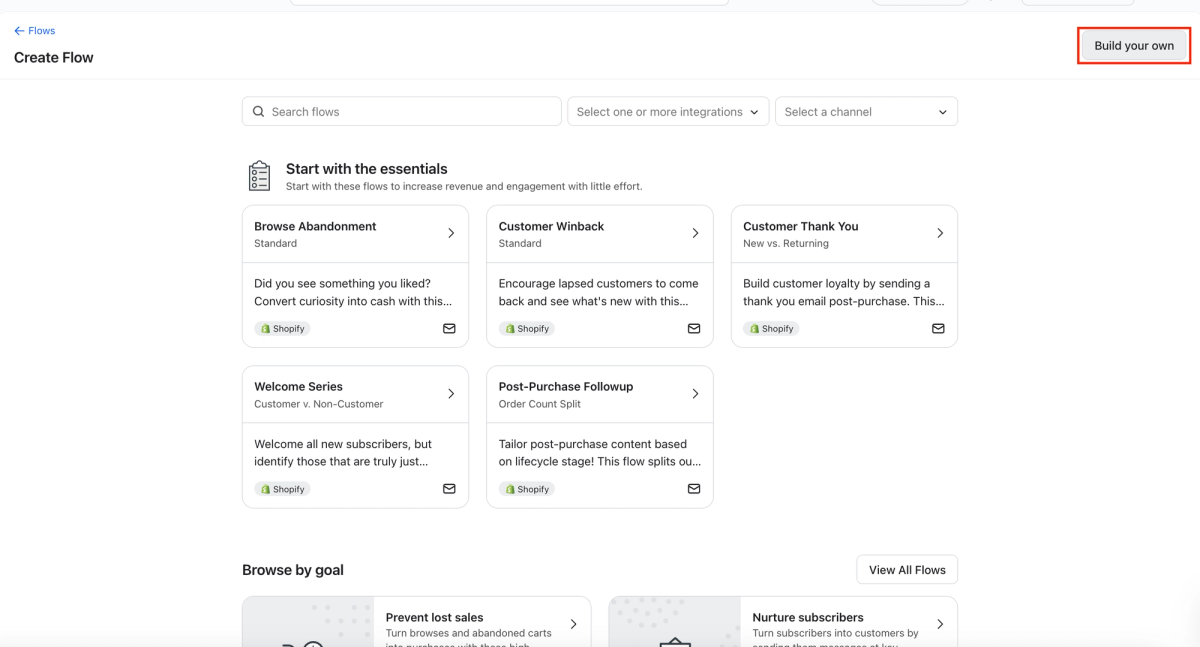
Select Build your own. Name the flow. For example, use
Post Purchase Review Flow Item Count Example.Set the Roadmap trigger
Click the Trigger card. Under Select a trigger → Your metrics, choose Roadmap: Eligible for Review Request.
Use Trigger filters for order-level rules. Use Profile filters for customer segments, such as B2B customers.
The metric already excludes ineligible products and previously reviewed items.
Add a delivery delay
Under Timing, drag Time delay below the trigger. In Time delay details, set Set time delay to
14Days.Start with
7–14days. The trigger fires at fulfillment, so the delay begins when the order ships.Split the flow by item count (1, 2, 3+)
Build Trigger split steps so each branch receives an email for its item count.
For the first split, set:
- Metric:
Roadmap: Eligible for Review Request - Dimension:
Item Count - Operator:
equals - Value:
1
Add Email #1 on the Yes branch.
On the first split's No branch, add another Trigger split. Set Dimension to
Item Count, Operator toequals, and Value to2. Add Email #2 on the Yes branch.On the second split's No branch, add a final Trigger split. Set Dimension to
Item Count, Operator tois greater than, and Value to2. Add Email #3 on the Yes branch.- Metric:
Design each email
Open each email action. Start with a template and customize it for
1,2, or3+items.Save each message before returning to the flow.

Optional: add a follow-up email
The Roadmap: Review Submitted metric lets you stop reminders for customers who submit a review.
Repeat this setup after Email #1, Email #2, and Email #3:
- Add a Time delay of
3days. - Add a Conditional split.
- Set
What someone has done (or not done) → Person has Roadmap: Review Submitted → at least once → since starting this flow.
Let the Yes branch end. Add the follow-up email on the No branch.
Keep the reminder short. The follow-up email should be shorter than the first request and act as a simple reminder to leave a review.
You can also trigger a separate thank-you flow with Roadmap: Review Submitted.

Result
- Eligible fulfilled orders enter the flow.
Item Countroutes customers to the correct email.- Reviewers exit before the follow-up email.
Troubleshooting
The trigger does not appear in Klaviyo
- Confirm the Roadmap Klaviyo integration is connected.
- Select Your metrics in the trigger picker.
- Confirm Roadmap metrics have synced to Klaviyo.
Customers do not enter the flow
- Confirm the order was fulfilled.
- Confirm it contains a review-eligible product.
- Check the review limit and Filter Products exclusions.
The follow-up sends after a review
- Set the split to
at least onceandsince starting this flow. - Place the follow-up email only on the No branch.
Frequently asked questions
Why use the eligible-review trigger?
It adds only customers with reviewable products. Ineligible orders never enter the flow.
Can I thank customers after they submit a review?
Yes. Trigger a separate flow with `Roadmap: Review Submitted`.