

Set up Roadmap loyalty in Shopify POS
Add the Redeem loyalty points and Loyalty point adjustments tiles to Shopify POS from Shopify admin or directly on the POS device.
Use this guide to add Roadmap loyalty to Shopify POS.
This setup gives staff two loyalty tiles:
- Redeem loyalty points
- Loyalty point adjustments
The adjustments tile is your pending points log in POS.
Before you start
Make sure these are already true:
- your loyalty program is active
- staff can access the Shopify POS device
- Fulfilled Order Adjustments is set to Require approval before adjusting if you want to use the adjustments tile
Changes made in Point of Sale → Settings → POS apps apply to all POS devices across all locations.
Option 1: Add the tiles from Shopify admin
Open Shopify POS settings
In Shopify admin, go to Point of Sale.
Then open Settings.
Open POS apps
In Settings, select POS apps.
Choose Roadmap from the app list.
Add the loyalty extensions
Open App extensions.
Add these two Roadmap extensions:
- POS UI extension — this becomes the Redeem loyalty points tile
- Loyalty Points Adjustments — this becomes the Loyalty point adjustments tile
If the redemption extension appears as POS UI extension, that is expected.
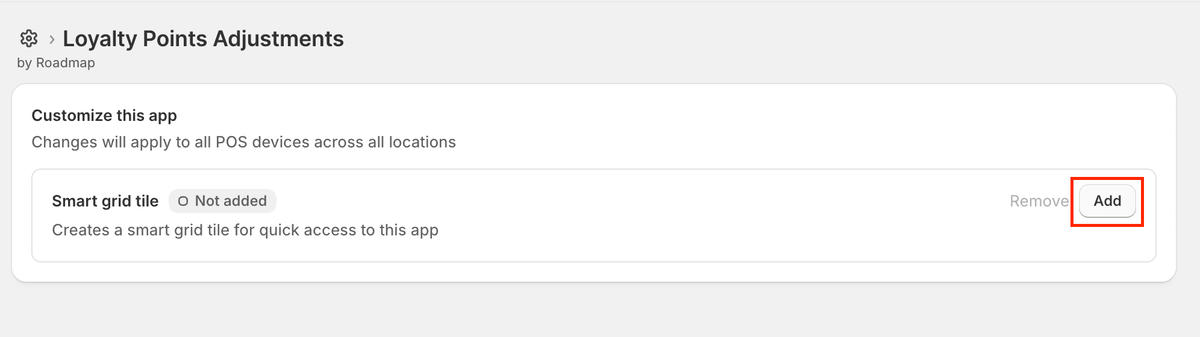
Refresh Shopify POS
Close and reopen Shopify POS on the device.
Then confirm both tiles appear on the smart grid.

After setup, Shopify POS can show one Roadmap entry as Roadmap and the other as Loyalty Points Adjustments. That is expected.
Option 2: Add the tiles on the POS device
Open the smart grid
On the POS home screen, tap Add tile.
Choose an app tile
Tap App.
Then select Roadmap.
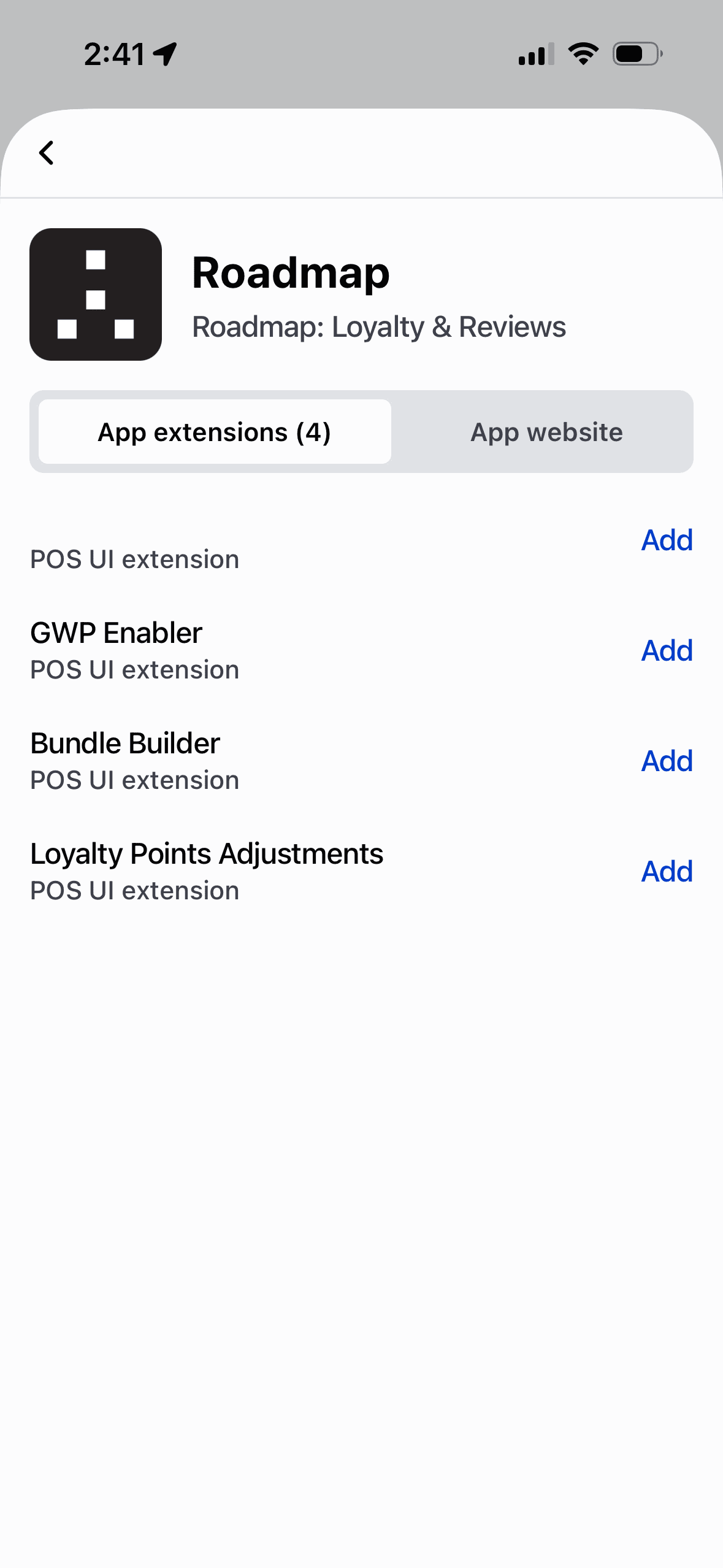
Add the loyalty extensions
Add these two options:
- POS UI extension — this becomes Redeem loyalty points
- Loyalty Points Adjustments — this becomes Loyalty point adjustments
Repeat the same flow if you only add one tile first.
Confirm the tiles are visible
Return to the smart grid.
Check that both loyalty tiles now show on the POS home screen.
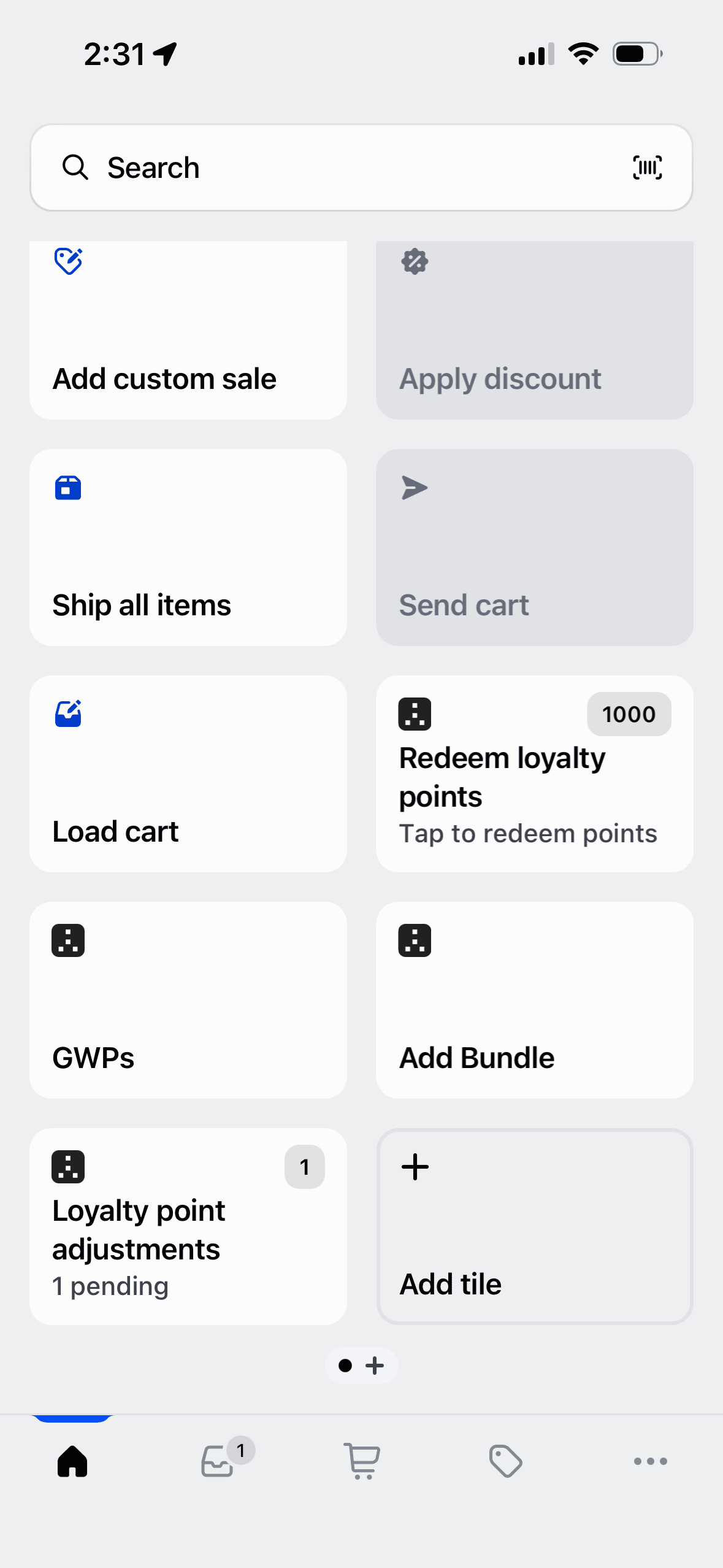


What each tile does
Redeem loyalty points
Use this tile when a customer is attached to the cart and wants to use their points.
Staff can:
- view the customer's available points
- redeem an available reward
- apply an existing loyalty discount if one already exists


Loyalty point adjustments
Use this tile to review pending point changes created after a fulfilled order changes.
Staff can:
- open the pending adjustment list
- review the suggested points change
- approve or reject the adjustment
This is useful for POS refunds, returns, exchanges, and other post-fulfilment edits.


Test the setup
After adding the tiles, run a quick test:
- Attach a loyalty customer to the cart.
- Open Redeem loyalty points and confirm rewards appear.
- If you use pending adjustments, open Loyalty point adjustments and confirm pending items appear when expected.
If the tiles do not appear, close and reopen Shopify POS first.
If they still do not appear, check that both Roadmap app extensions were added.