

Import reviews to Roadmap with CSV template
Roadmap imports reviews from a CSV file. You can include the photos and videos customers added to their reviews, as long as the files are uploaded to Shopify first.
Before you start
Set up your review form. In your Roadmap admin, go to Reviews → Review Form and finish your form setup (questions, required inputs, and so on).
Roadmap builds the sample CSV from your current review form. If you've added extra questions to your form, such as a photo or video upload, the sample CSV includes a column for each one. If you change your form later, download a fresh sample CSV before you import again.
Step 1: Download the sample CSV template
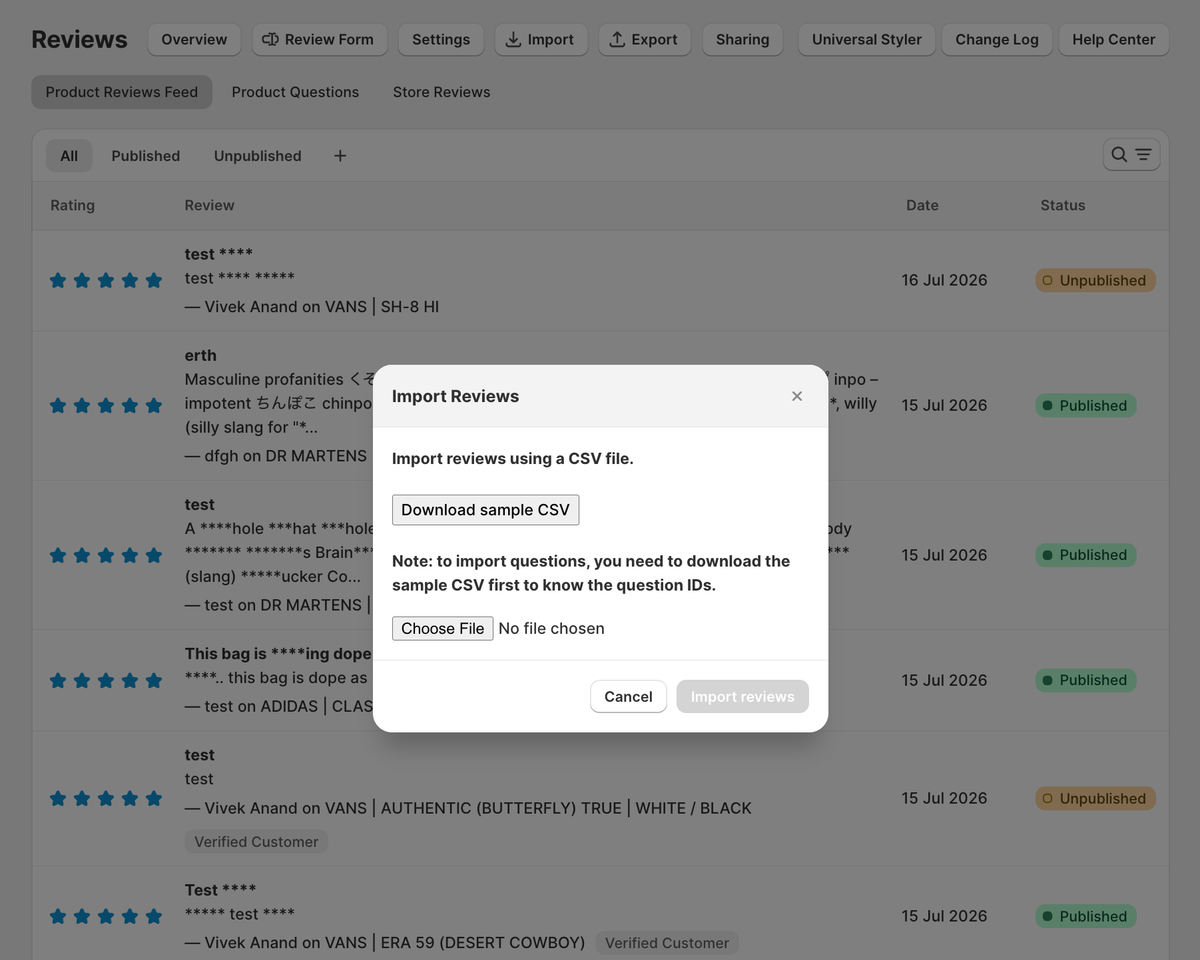
- In your Roadmap admin, go to Reviews → Import.
- Select Download Sample CSV.
This file has the exact columns and formatting Roadmap expects.
Step 2: Upload review photos and videos to Shopify (optional)
Skip this step if your reviews have no photos or videos.
To import media, your review form needs a photo or video upload question. That question is what adds the media column to the sample CSV. If you don't see one, add the question in Reviews → Review Form, then download a fresh sample CSV.
Roadmap attaches review media using the file's Shopify ID, so every photo and video needs to be in your Shopify Files before you import.
- In your Shopify admin, go to Content → Files.
- Click Upload files and add your review photos and videos.
- Wait until each file has finished processing. Videos can take a minute or two.
- Open a file. Its ID is the number at the end of the page URL.
You then add that ID to your CSV with a prefix that says what kind of file it is:
File type Format Example Photo gid://shopify/MediaImage/+ IDgid://shopify/MediaImage/36281944719532Video gid://shopify/Video/+ IDgid://shopify/Video/41974433185964Image links and the ID number on its own won't work. If you paste a file URL (for example one starting with
https://cdn.shopify.com/) or the ID without the prefix, the review imports without its photo or video.Step 3: Fill in your review data
Export your reviews from your previous review app, then copy or map the values into the Roadmap template columns.
Don't rename or reorder columns in the sample CSV. Keep the header row exactly as downloaded.
Required fields
product_handle: the product's URL handle. Required ifproduct_skuis empty. For a store review, enterstore-reviewinstead of a handle. Example:rhoda-boot-black-leatherproduct_sku: the product's SKU. Required ifproduct_handleis empty. Example:TRFC116type: whether this is a product or store review. Usereviewfor a product review, orstore-reviewfor a store review. A store review also needsstore-reviewinproduct_handle.state: the review's status once imported. Use one of the four values below. Any other value, such ashidden, causes the row to fail.published: the review shows on your storefront.approved: the review imports as unpublished. It's in your admin but doesn't show on your storefront until you publish it.flagged: the review imports as flagged, so you can check it before publishing.spam: the review imports marked as spam.
rating: the star rating, from 1 to 5. Example:4email: the customer's email. Example:customer@example.comverified: whether the review is from a verified purchase. UseTRUEto show the verified badge, orFALSEfor no badge.created_at: when the review was submitted, asYYYY-MM-DDwith an optional time. Example:2025-10-16 13:38:14
Optional fields
title: the review title. Example:Love these boots!author: the customer's name. Example:Jane Doelocation: city or country. Example:New Yorkbody: the full review text. Example:Great quality, fast shipping!reply: your reply to the review. Example:Thanks for your feedback!replied_at: when you replied, in the same format ascreated_at. Example:2025-10-20 10:22:00source: where the review came from. Example:Roadmaporder_number: helps match the review to the customer's order. Example:123456789ipaddress: leave this blank if your old app didn't export it.
Review form question columns
These columns only appear if your review form has extra questions, such as a photo or video upload. Each extra question gets its own column after the standard ones, and its header shows the question's ID and label, for example
question_1772418711131 (Seen results? Let us know!). If your form has no extra questions, your sample CSV won't have these columns.- Fill in each customer's answer, or leave the cell blank if they didn't answer.
- For a choice question, use the option text exactly as it appears on your form.
- For a photo or video question, add the file ID from Step 2, for example
gid://shopify/MediaImage/36281944719532.
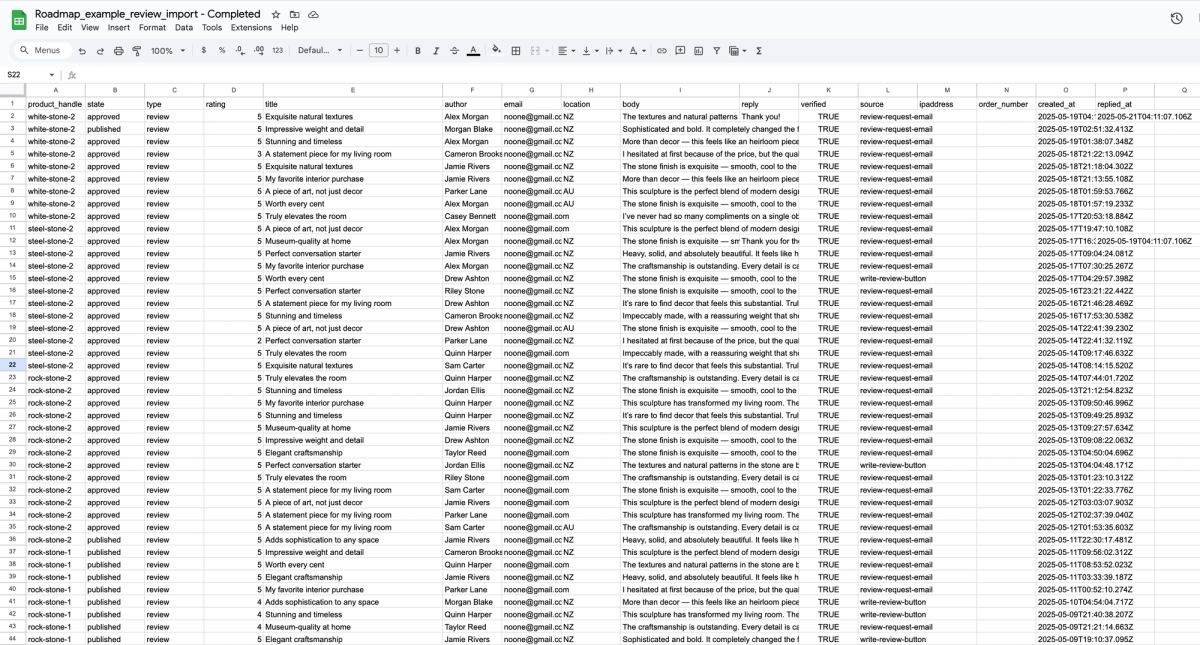
If you're importing a mix of product reviews and store reviews, double-check the
typeandproduct_handlecolumns before you upload. Store reviews needstore-reviewin both columns. A wrong value puts the review in the wrong place, or stops it importing.Step 4: Import your reviews
- Go to Reviews → Import.
- Select Choose File and pick your completed CSV.
- Click Import Reviews.
Importing can take up to 10 minutes, depending on file size. You can import up to 3,000 reviews at a time.
Importing a lot of reviews with photos or videos? Try a CSV with one or two rows first, and check the review in your admin before you import the rest.
Step 5: Fix any import errors
If Roadmap finds problems during the import, they show in a pop-up.
- Download the error file from the pop-up.
- Correct the rows it lists.
- Import only the fixed rows, using the same Reviews → Import flow.
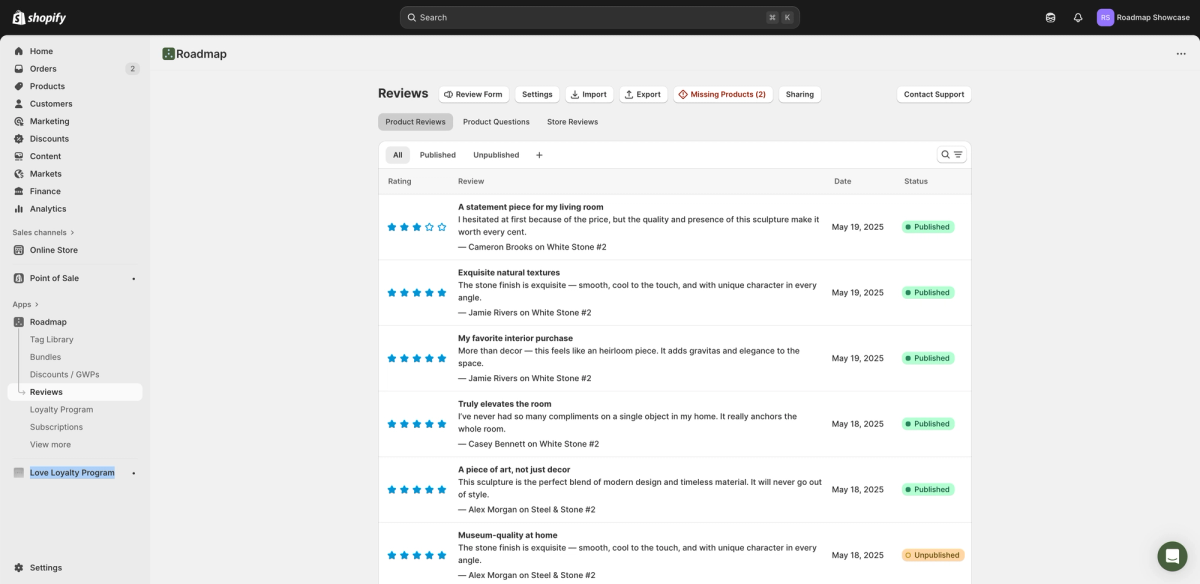
Step 6: Assign reviews under Missing Products
If a review's
product_handleorproduct_skudoesn't match a product in your Shopify store (for example, the product has been deleted), the review appears in Missing Products.- Go to Reviews → Missing Products.
- Next to an unassigned group, click Manage.
- Click Browse & Attach Products.
- In the picker, click Browse, then select the correct product or products.
- Click Apply Selection.
- Click Update Products to save.
- When you're done, click Close.
Step 1 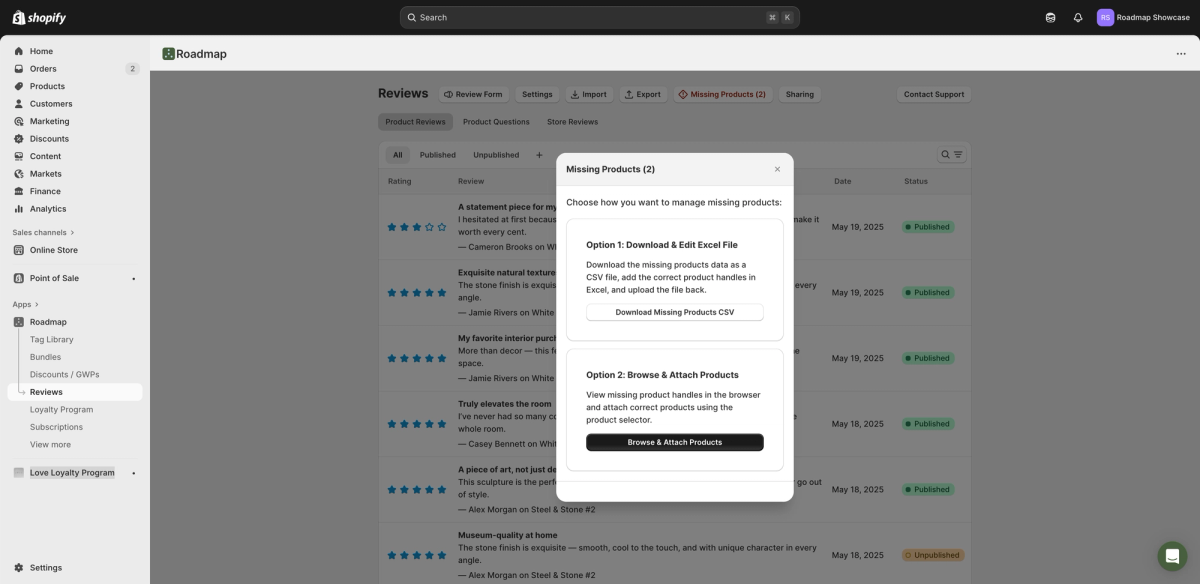
Step 2 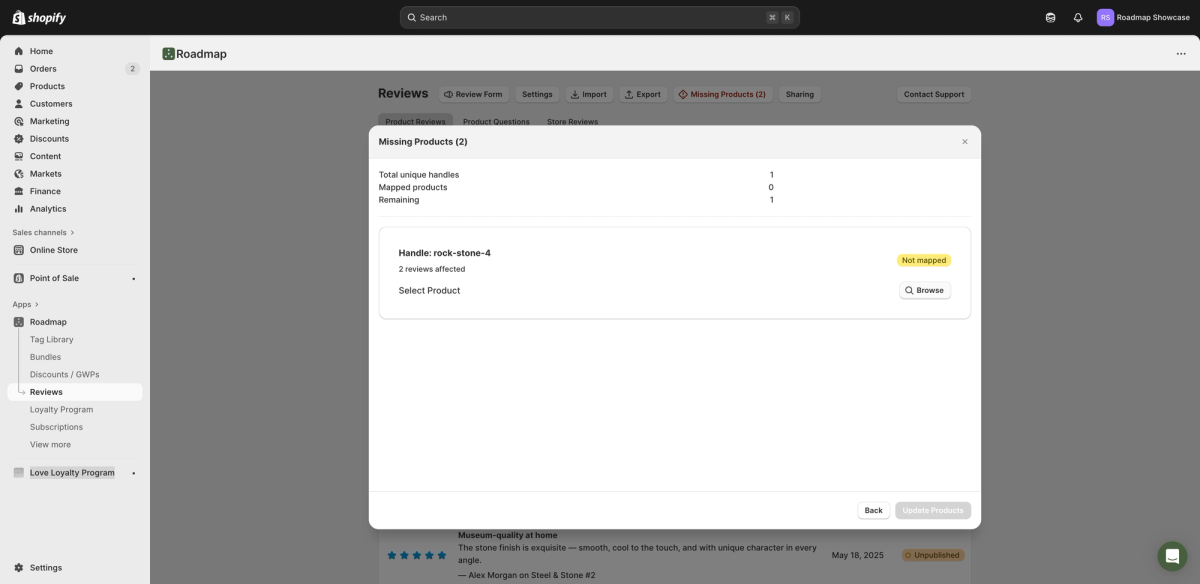
Step 3


What happens after import?
Once your reviews are imported and any missing products are assigned, they show in your Roadmap review blocks on your storefront.
- Reviews appear on the right products.
- Photos and videos show with their review.
- They count toward your star ratings and review totals.
- You can moderate them in Roadmap like any other review: reply, pin, and change their visibility.
Troubleshooting
My reviews imported but don't show on my storefront
- Check the
statecolumn. Onlypublishedreviews show on your storefront. Reviews imported asapprovedare unpublished until you publish them. - If reviews are in Missing Products, assign them to products.
My store reviews didn't import
- Check that both
typeandproduct_handleare set tostore-review. A store review with an emptyproduct_handlewon't import. - Leave
product_skuempty for store reviews.
My reviews imported but the photo or video is missing or blank
- Make sure the cell has the full ID with its prefix, such as
gid://shopify/MediaImage/36281944719532. A link to the file, or the number on its own, won't attach. - Check the prefix matches the file type:
MediaImagefor photos andVideofor videos. - Check the file is still in Content → Files in your Shopify admin and has finished processing.
- Make sure the ID is in the photo or video question column, not another column.
Some rows fail to import
- Download the error file from the import pop-up and fix only the rows it lists.
- Check
stateispublished,approved,flaggedorspam. - Check dates use
YYYY-MM-DD(time optional), and that every required field is filled in. - Make sure the headers match the Roadmap template exactly.
Should I use product_handle or product_sku?
Use whichever is more reliable for your catalog. Roadmap needs at least one of them for product reviews. If you fill in both, make sure they match the same product in Shopify.
Need help?
If you get stuck with template mapping, errors, media, or Missing Products, contact Roadmap support and share:
- your CSV file (or a few sample rows),
- the error file, if you downloaded one, and
- an example product that should have reviews but doesn't.
Does Roadmap integrate with headless Shopify stores?
No.