

Adjusting an upcoming subscription order
Change a single upcoming subscription order without affecting the contract or the schedule, from the admin or from the customer's own account.
Most changes to a subscription apply from that point onward: swap a product, change the frequency, move the address, and every future order follows. Occasionally you need to change one delivery only.
Both you and the customer can do this. The steps below are the admin route, and customers have their own equivalent from their account dashboard.
Where upcoming orders live
Open the contract from Subscriptions, then find the upcoming orders in the Orders list. Each order has a ••• menu holding the actions that affect that order alone.
The Upcoming tab lists every scheduled order, not only the next one, and each has its own ••• menu. You can change a delivery several cycles out and leave every order before it alone.
This is the part customers cannot do. From their dashboard they can only change their next order. Anything further ahead has to come from you.
The contract's own Products card, higher up the page, has an identical looking ••• menu that changes every future order. The modal heading tells you which one you opened: Edit upcoming order product is this page, Edit subscription product is the contract. See Changing the products on a subscription contract.
Add a product to one order
From the upcoming order's ••• menu, choose Add product to this order.
This applies to one order only. It does not become part of the contract, so the delivery after it goes back to the contract's usual products. If the customer wants the item every time, change the contract instead.
Which products the picker offers
The picker does not offer your whole catalogue. Three rules decide what appears:
- Only what the plan's One-off products setting allows. Each plan controls its own adds.
- Bundled products never appear, whichever plan the subscription is on.
- Sold-out products are marked, so you can see at a glance what you cannot add.
The same rules apply to the customer's own picker, so you and they see the same list.
If a product you expect is missing, open the plan settings that subscription belongs to and check One-off products rather than the product itself. A product can be available on subscription and still be left out of the one-off list, because the two are configured separately. If the product is deliberately not published to your online store, Include unlisted products is what lets it through. See How to set up a subscription plan.
If the plan discounts one-off products
When the plan runs one-off discount offers, the picker prices them accordingly. A banner under the search names the offer that applies to this customer, for example 50% off · Standing · All customers · their best available offer, and each variant shows its discounted price with the original struck through.
Which offer a customer gets depends on their tier or their tags, so two customers can see different prices for the same product. See Offer one-off products at a discount.
What keeps a one-off addition, and what clears it
A one-off addition stays on its order through almost everything you or the customer might do to the contract.
It survives skipping a delivery, rescheduling, changing the delivery frequency, editing or swapping the subscription products, and updating the customer's payment method. The addition is re-applied after the change, so the customer's dashboard never loses it.
It is used up when that order is charged, including when the charge is brought forward with Order now.
It is removed and refunded when the contract is paused or cancelled, on every pause regardless of duration. See Pausing, canceling, and reactivating subscriptions.
Loyalty point redemptions staged on an upcoming order behave the same way: kept through changes, refunded to the customer's balance on a pause or cancellation.
The practical version: the only things that clear a staged order are billing it or stopping the contract.
Change or drop a product on one order
Each product line inside an upcoming order has its own ••• menu with Edit, Apply discount and Remove.

Edit opens Edit upcoming order product, which states at the top: This will update the product ONLY for this upcoming order. The subscription itself will remain unchanged. Change the Select Product / Variant or the Quantity, then click Update order.
Apply discount discounts that product on that order alone, leaving the contract untouched. The order's own ••• menu has an equivalent for discounting the whole order. See Discount a subscription contract.
Remove drops the product from that delivery. It stays on the contract and returns on the next cycle.
All three are scoped to that one order, so the contract keeps billing as it always did. An order showing 2 × Brain Wave while the contract's Products card reads 2 × Happy Gut is a swap applied to that delivery alone, and the orders after it go back to Happy Gut.
Use these when a customer wants a one-time change, for example doubling a quantity for one month, sending a substitute while something is out of stock, discounting a single delivery as a goodwill gesture, or skipping one item without skipping the whole delivery.

How customers do it themselves
Customers reach the same thing from their account dashboard, so it is worth knowing the flow before doing it on their behalf.
Add product to order
Under Products on the subscription card, the customer clicks + Add product to order.
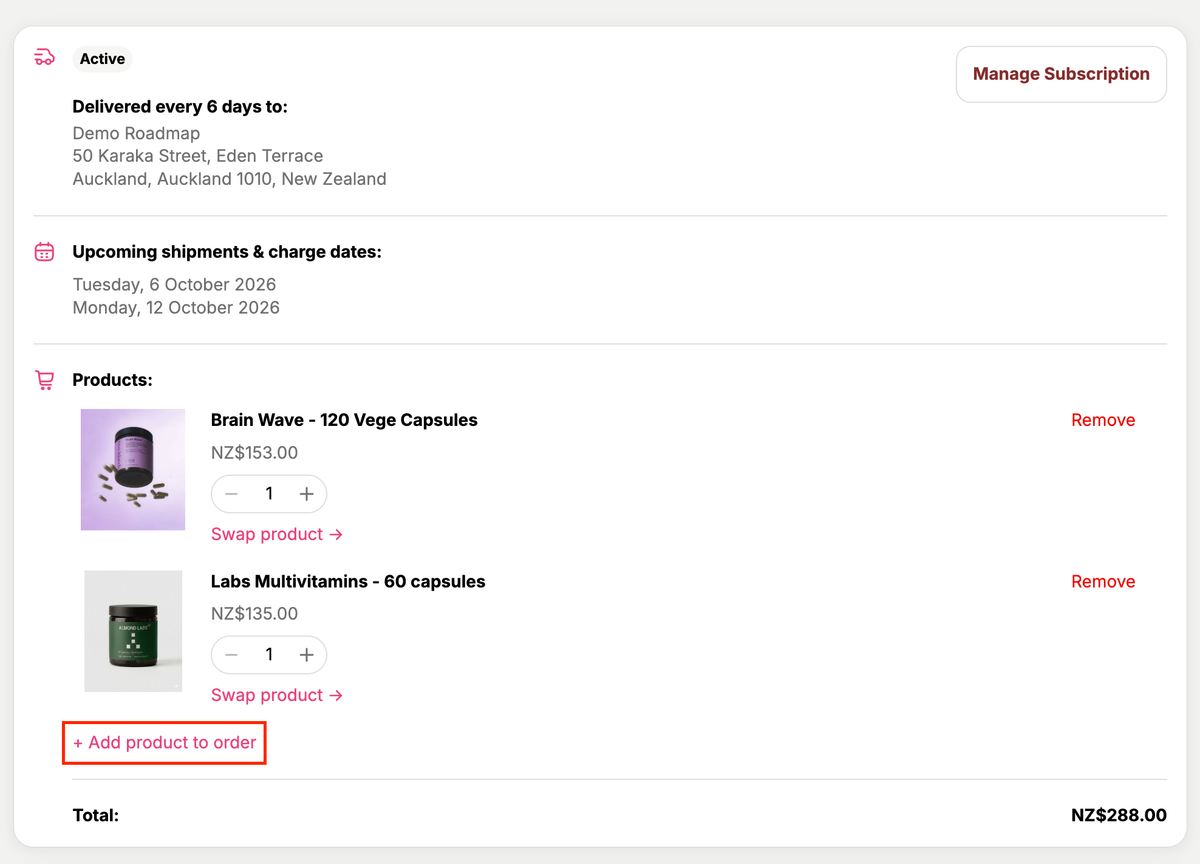
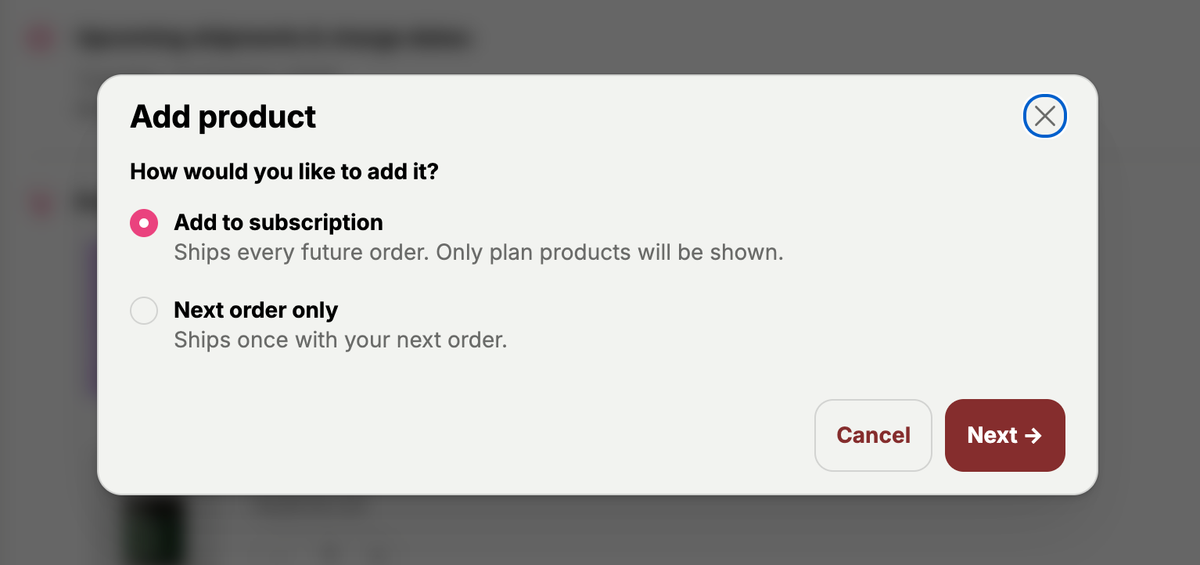
Choose how to add it
The Add product modal asks how they want it added:
- Add to subscription: ships every future order. Only the plan's products are offered.
- Next order only: ships once with your next order.
They pick one and click Next.
Pick the product
Next order only opens Add to next order only, with a search field and the products they can choose from. Sold-out items are listed but greyed out and marked
(sold out), so they cannot be picked.If a discount offer applies to them, a callout sits above the list carrying the offer's label and description, and every product is priced with the discount applied and the original struck through.
They select a product and click Add to next order.


The item then sits on the card with a Next order only badge, and the card total updates to include it. Where an offer applied, the line also carries a badge showing the discount, the discounted price against the original, and the offer's name.

Those two options are the whole distinction in miniature: Add to subscription changes the contract and is limited to plan products, while Next order only touches a single delivery.
Which price each one gets
The two routes are priced differently, and the difference catches people out when the same product appears in both lists.
- Added to the subscription, or swapped in for an existing subscription product, the product is charged at the subscription price. The plan's recurring discount applies to it the same way it applies to everything else on the contract.
- Added as Next order only, the product is charged at its one-off price, which is where the plan's one-off discount offers apply instead.
So a product sitting in both lists can legitimately show one price when the customer swaps to it and another when they add it for a single delivery. See Offer one-off products at a discount.
What customers can do themselves
From their account dashboard they can:
- Add a one-off product to an upcoming cycle, the same as you can here, drawn from the same One-off products list.
- Add and remove subscription products on their own subscription.
Alongside those, an Active contract offers Order now, Skip next delivery, Reschedule, Change delivery frequency, Edit shipping address, Swap Products, Redeem loyalty points, Update payment method, Pause and Cancel. The menu narrows when a contract is Paused or Failed.
Customers can reduce what they pay on an upcoming order by redeeming loyalty points. Product and order discounts are different: those are applied by you from the admin and cannot be started by the customer.
The customer subscription dashboard: a tour covers each action, which ones appear in which status, and the address and swap restrictions that catch customers out.
Because a customer can make these changes without telling you, the contract's Timeline is the quickest way to see who changed what.

Using Order now with a one-off addition
A one-off addition sits on a specific upcoming order, so Order now brings it forward along with everything else on that order. Add a product to the next order, run Order now, and the customer is billed for the subscription items and any one-off additions together, and receives them in the same delivery.
The same is true of a one-time discount staged on that order. It is consumed by the Order now charge and does not return.
Once that order has been processed the contract refreshes for the next cycle. The one-off additions have been used, so the following delivery goes back to the contract's usual products.
This is worth knowing before running Order now to recover a contract or to send an early refill: check the upcoming order first, because anything staged on it will be charged now rather than later. See Manually charging a subscription (Order Now).
Related guides
- Discount a subscription contract: discounting one order, or every order
- Offer one-off products at a discount: discounting what customers add here
- Pausing, canceling, and reactivating subscriptions: what a pause does to a staged order
- Changing the products on a subscription contract: changing every future order instead of one
- The customer subscription dashboard: a tour: every action customers can take themselves
- Manually charging a subscription (Order Now)
- How to set up a subscription plan: the One-off products setting that controls this list
- Changing shipping on a subscription contract