

How to install the dashboard and quote builder
Add the single Trade Dashboard block to Shopify customer accounts. One block carries both the dashboard and the quote builder, configured in Trade Settings.
The Trade Dashboard is one app block that carries the whole trade experience: the product dashboard and the Quotes view share the block through a tab switcher. Installing it is a single step in the theme editor; everything else is configured in the Roadmap app.
Use quote terminology if you want to present it as a quote builder.
Earlier versions used two separate blocks, one for the dashboard and one for the quote builder. They're now combined, so there is only one block to add. If a layout from an older install still carries two blocks, the combined Trade Dashboard block replaces both.
Add the block to customer accounts
Open the theme editor
In Shopify, go to Online Store → Themes → Customize.
Open customer accounts
Switch to Checkout and customer accounts.
Then open your new customer accounts layout.
Add the Trade Dashboard block
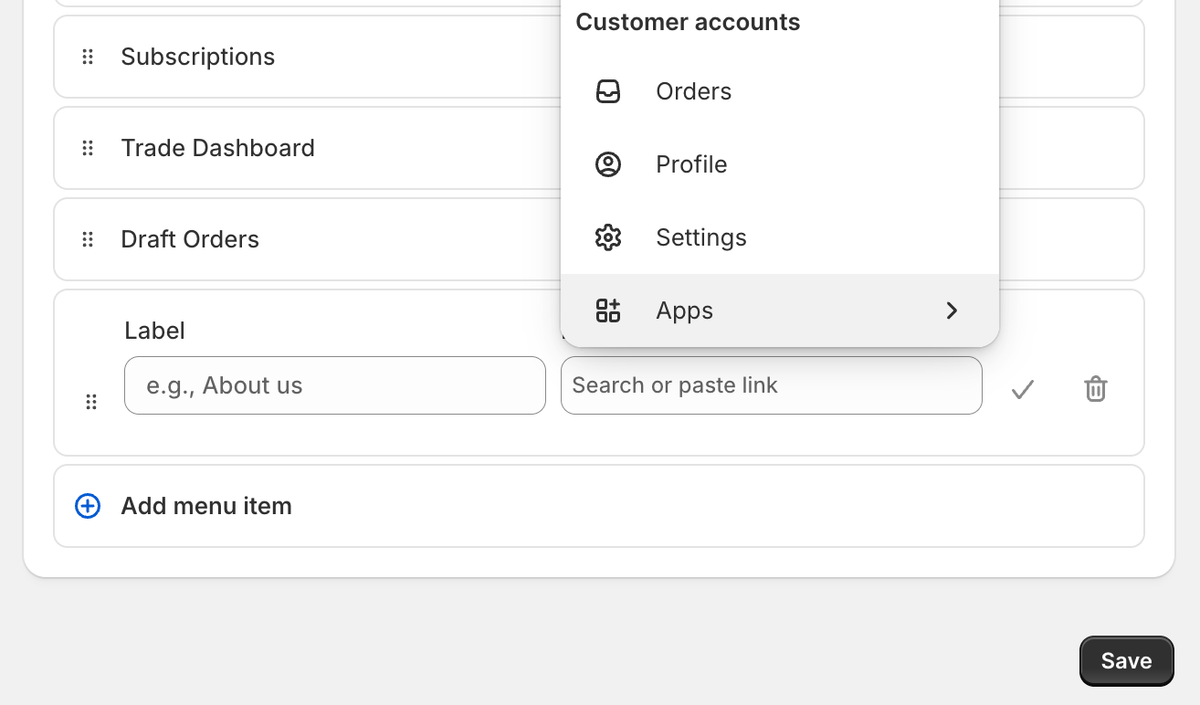
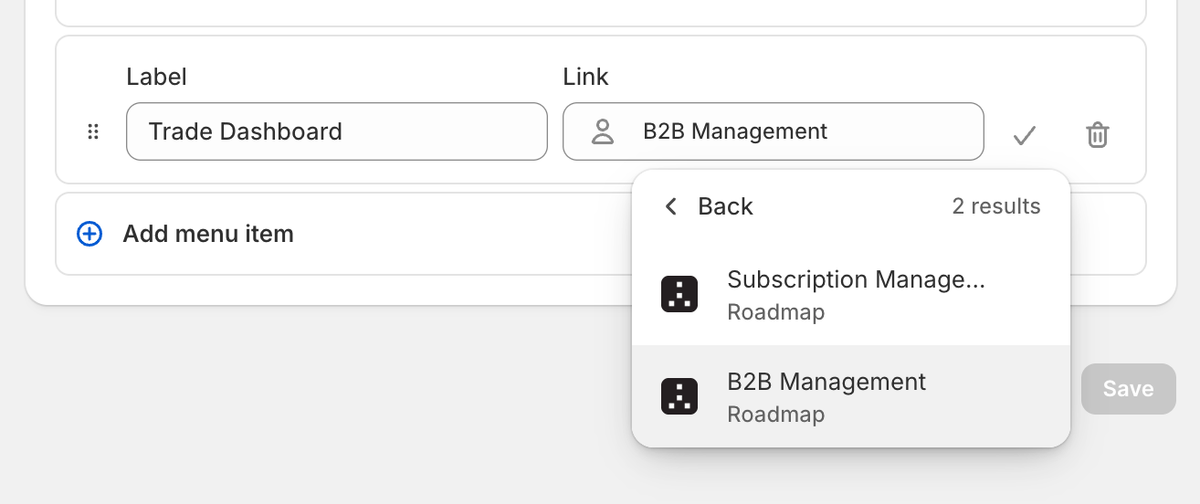
Add the B2B Management through Header → Menu → Edit → Add menu item → Apps.
The one block brings both tabs with it: the dashboard for browsing and building, and Quotes for reviewing and editing.
Save your changes
Save the layout once the block is in the right place.


Configure dashboard settings
The block self-populates once it is added.
These settings no longer live in the Shopify theme editor.
Open the Roadmap app, then go to Settings → Trade Settings → Trade Dashboard. The tab's sections run top to bottom, each with its own guide:
- Set the Trade Portal header, titles & tabs — the page title and each tab's title and subtitle.
- Customize how products display on the Trade Dashboard — terminology, images, paging, pricing, the variant button, and subtitles.
- Show pre-order and back-order info on Trade quotes — ETA metafields and badges.
- Customize Trade Dashboard filters & sorting — the default sort and filter panel.
- Configure Trade Dashboard access and quote builder — quote fields, customer eligibility, and what Confirm Order does.
Styling still comes from your Shopify customer account styling settings.
How styling works
The Trade Dashboard inherits colours and fonts from your Shopify customer account styling settings in the B2B management tab's 'main' settings. That keeps the experience aligned with the rest of customer accounts.

Before you publish
Test the block with a real B2B customer account.
Check visibility, pricing, product access, and the wording customers see.