

How to create secrets products/collections
Use Secret Products to control product and collection access by customer eligibility.
Use Secret Products to control who can access specific products or collections.
Use it when the restriction belongs on the product side, not on a storefront page URL.
Interactive walkthrough here: https://app.arcade.software/share/283JYMZ0GTI3AfNOFw9u
Use Secret Products when
Choose this tag type when you want to:
- show products only to wholesale or VIP customers
- hide products from specific countries
- run private collections or sample sales
- give repeat buyers access to special bundles
- keep a range visible only to signed-in customers
Decide these settings first
Before you build the rule, decide:
- whether you are restricting products or collections
- whether the selected audience should be Visible or Hidden
- who should qualify
- where blocked visitors should land
- whether the rule needs a start or end date
Tag name is for admin reference only.
Name tags clearly so your team knows what each rule controls, such as Wholesale access - Trade.
When you open Tag Library, you can review existing Draft and Active tags before creating a new one.
Set up a Secret Product tag

Open Tag Library
In Shopify admin, go to Apps → Roadmap Dev → Tag Library.
The main screen shows your existing tags.
You can review which tags are already Draft and which are Active.
Create a new tag
Click Create a New Tag.
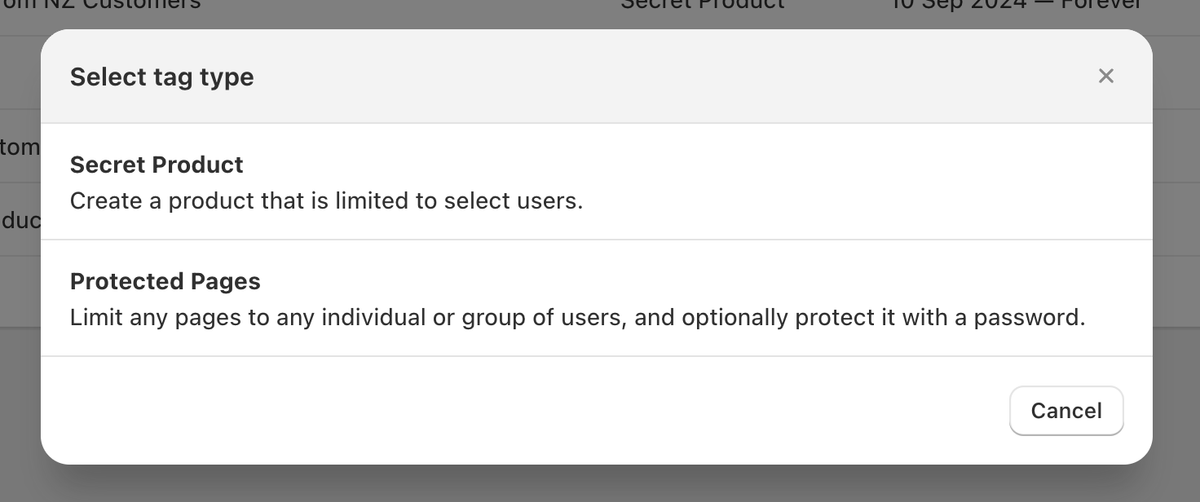
This opens a pop-up with the available tag types.
Choose Secret Product
In Select tag type, choose Secret Product.
Use this when you want to control access to products or collections.
Use Protected Pages instead when the rule should apply to a storefront page or URL.
Add the tag name
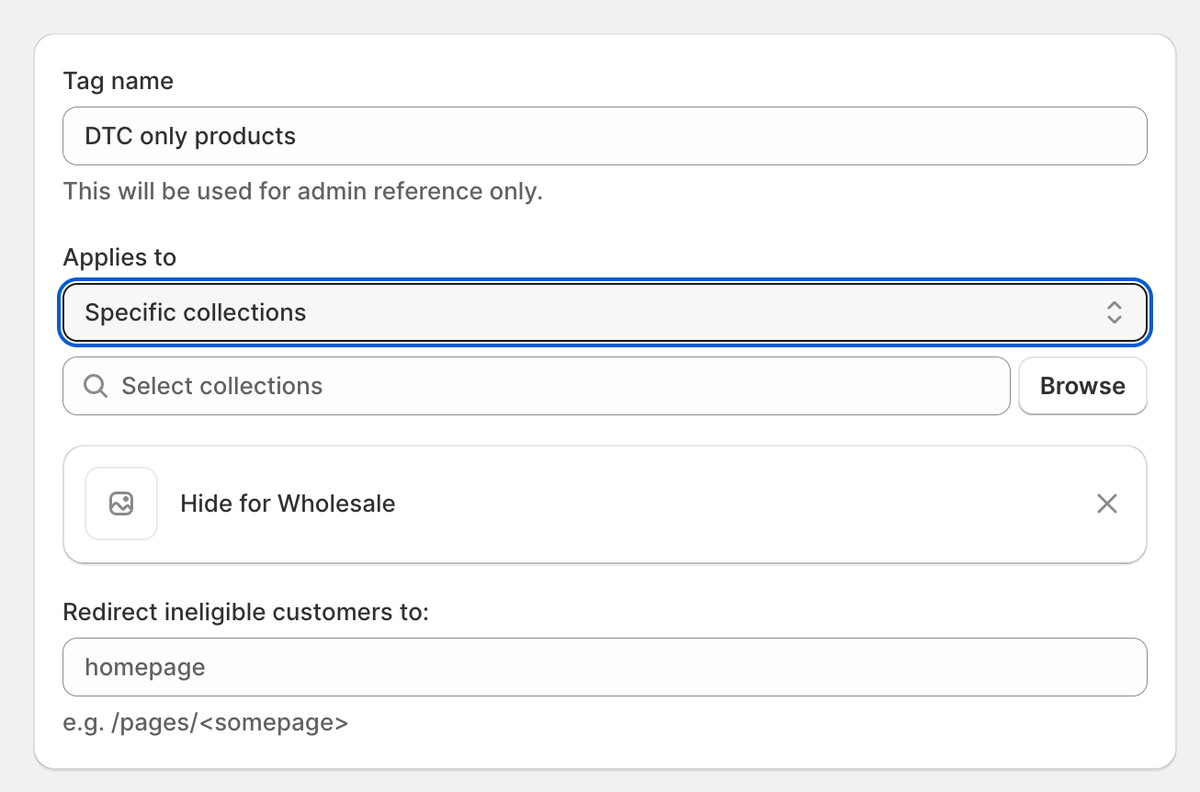
Enter a clear Tag name.
This is an internal reference for your team.
Use something obvious, such as
Hide from wholesaleorVIP early access.Keep the rule in Draft while you set it up
Leave Status as Draft while you build and test.
Only switch it to Active once the setup is confirmed.
Choose what the rule applies to
In Applies to, choose the target.
Then add the specific products or specific collection you want to control.
Use specific collections if the rule should apply to a grouped range that will dynamically change as the collection is updated.
If the range changes often, create the smart collection in Shopify first, then attach that collection to the tag.
Choose whether the selected audience is Visible or Hidden
In Customer Eligibility, first decide whether the selected audience should be shown the products or blocked from them.
Use Visible when only that audience should see the products.
Use Hidden when that audience should be blocked from the products.
Choose the audience
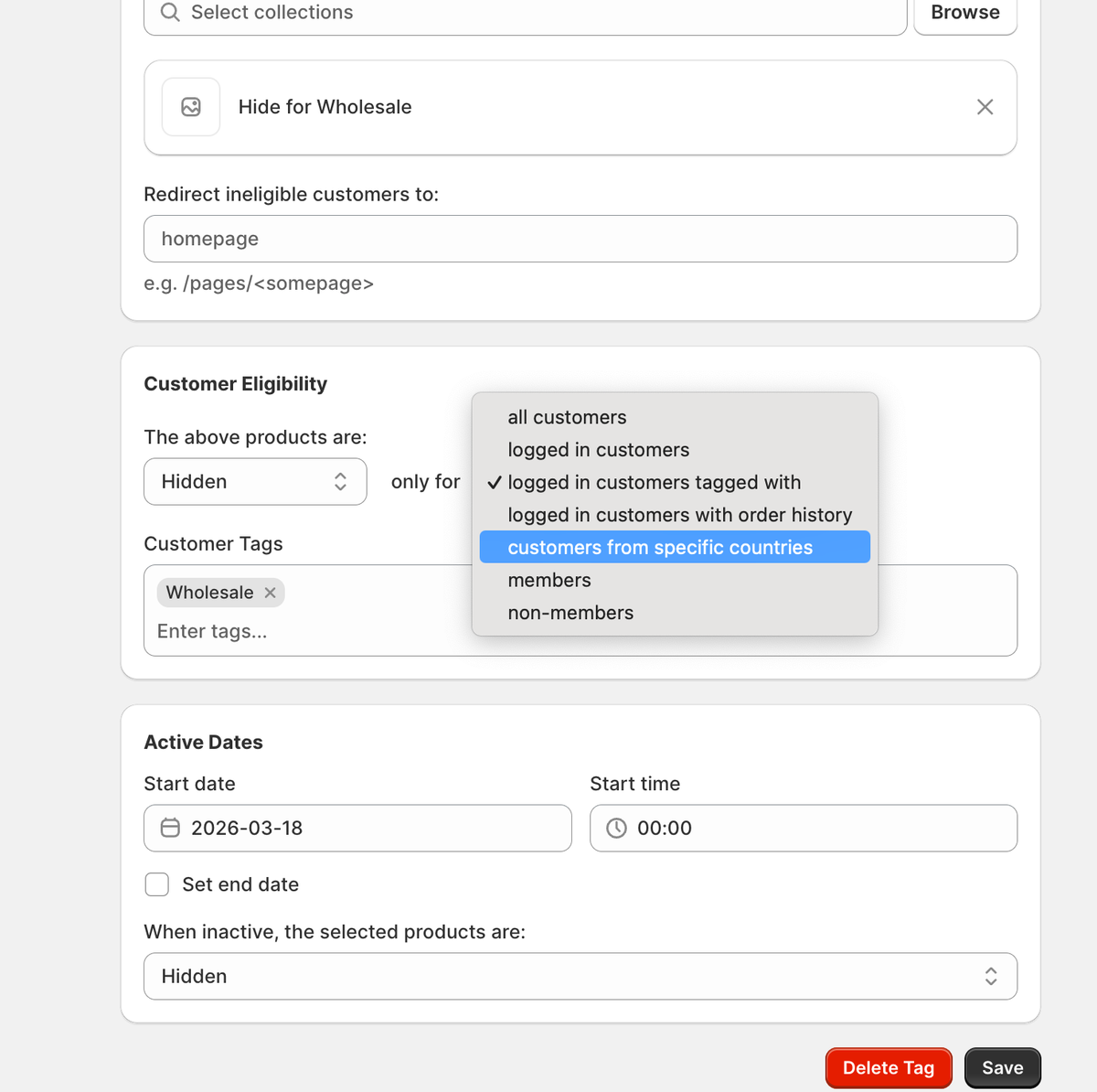
In only for, choose who the rule should apply to.
Common options include:
- all customers
- logged in customers
- logged in customers tagged with
- logged in customers with order history
- customers from specific countries
- members
- non-members
Choose the option that matches the audience you want to include or exclude.
Fill in the extra audience details
Some audience choices need more input.
For example:
- logged in customers tagged with needs one or more Shopify customer tags
- customers from specific countries needs the country selection
- logged in customers with order history needs the order or spend rule
A common setup is:
- The above products are: Visible
- only for: logged in customers tagged with
- Customer Tags:
Wholesale
Set the redirect for blocked visitors
Use Redirect ineligible customers to: to choose where blocked visitors should go.
Leave this blank to send blocked visitors to the homepage.
Or enter a path like
/collections/new-arrivals.Set the start date and time
In Active Dates, choose the Start date and Start time.
If the rule should begin today, use today’s date and the time you want it to start.
Add an end date if needed
Turn on Set end date if the rule should stop automatically.
Then choose the End date and End time.
Choose the inactive behaviour
Use When inactive, the selected products are: to control what happens outside the active window.
The schedule only runs when the tag Status is Active.
Save the tag
Save the tag.
Test the rule
Before activation, test the scenario with an placeholder testing tag:
- one customer who should be eligible
- one customer who should be ineligible
- a direct product link
- the redirect destination
If the rule depends on tags, order history, loyalty status, or customer accounts, test with signed-in customers.
Activate the rule when testing passes
Switch the tag to Active only after testing passes.


Pick the right eligibility option
The only for dropdown can include options such as:
- all customers
- logged in customers
- logged in customers tagged with
- logged in customers with order history
- customers from specific countries
- members
- non-members

If you choose an option that requires more detail, the form displays additional fields.
Example: logged in customers tagged with adds a Customer Tags field.
Most targeted eligibility rules only work with signed-in customers.
This is especially important for customer tags, order history, and member status.
Choose redirects intentionally
Secret Product rules also affect direct links.
If an ineligible visitor lands on a restricted product from email, ads, or social, they will be redirected.
Use a destination that matches intent:
- a relevant collection:
/collections/new-arrivals - an explanation page:
/pages/wholesale - a region-friendly alternative collection
Worked example: hide a collection from wholesale customers
Use this setup when a range should stay available to direct-to-consumer shoppers, but not to wholesale accounts.
Set:
- Applies to: Hide for wholesale collection
- The above products are: Hidden
- only for: logged in customers tagged with
wholesale - Redirect ineligible customers to: homepage
Result:
- logged-in wholesale customers cannot view the selected products
- All other shoppers can still access them
- Please note: If the customer is logged out, they will see this product collection.
Common setups
Wholesale or trade-only products
Use:
- Visible
- logged in customers tagged with
- a tag such as
Trade
Redirect blocked visitors to homepage or a wholesale information page.
Hide products from wholesale customers
Use:
- Hidden
- logged in customers tagged with
- a tag such as
wholesale
This is useful when a product is meant for direct-to-consumer shoppers only.
VIP early access to a new drop
Use a VIP tag or logged in customers with order history.
Add an end date if the products should become public later.
Logged-in customers only
Use:
- Visible
- logged in customers
This works well when the products should stay hidden from guest visitors.
Country-based product access
Use customers from specific countries.
Then decide whether those customers should be Visible or Hidden.
Redirect blocked shoppers to a relevant collection instead of a dead end.
Repeat-buyer bundles or add-ons
Use logged in customers with order history.
This works well for past-purchaser bundles and loyalty-style offers.
Loyalty member-only products
Use:
- Visible
- members
This works well for member perks, loyalty redemption bundles, or tier-based access.
Products for non-members only
Use:
- Visible
- non-members
This is useful for join-now offers or products that should disappear once a customer becomes a member.
Test before launch
Check all of these before you activate the tag:
- an eligible customer can access the product or collection
- an ineligible customer is redirected correctly
- direct product links behave as expected
- the schedule is correct, if used
- When inactive matches the result you want after the rule ends
- logged-out behaviour matches your eligibility choice
Fix common issues
Eligible customers still cannot see the product
Check:
- the tag Status is Active
- Visible or Hidden is set correctly
- the customer matches the selected eligibility rule
- Is the customer tag match in the customer profile and in the tag (Customer tags are case sensitive)
- the product or collection was included in the 'applies to' selection.
Customers are redirected to the wrong place
Review redirect ineligible customers to:
Use a store path that matches the customer’s intent.
The product should be public now, but it is still restricted
Check 'When inactive, the selected products are' configuration
If access should open after the schedule ends, this must be set to Visible.
Related guides
- Customer eligibility controls in Tag Library
- Schedule start and end dates in Tag Library
- Creating Protected Pages in Tag Library