

Managing point adjustments post-fulfilment
Review and approve loyalty point changes created after a fulfilled order is refunded, returned, exchanged, or edited.
If you use Require approval before adjusting, Roadmap monitors order changes post-fulfilment and creates point adjustment recommendations for you to approve, customise or reject.
This covers points earned from the Place an order rule only. Other ways to earn are not affected by the setting. Product Purchase Rewards, for example, updates its own product count and reverses its own rewards straight away, without passing through this queue.
Turn on pending adjustment review
Open Loyalty Program → Points.
Scroll to Order Adjustments.
Set Fulfilled Order Adjustments to Require approval before adjusting.

Point adjustments for order changes are applied automatically if they occur before an order is fulfilled.
Pending adjustments are only created for post-fulfilment changes.
When a pending adjustment is created
Roadmap creates a pending adjustment when a fulfilled order changes and the points-eligible order value changes.
Common triggers include:
- partial refunds
- full refunds
- returns
- exchanges
- cancellations on fulfilled orders
- Items added after fulfilment
This is especially useful for Shopify POS.
POS often fulfils orders immediately.
If a staff member adds or swaps items after that, Roadmap logs the point change for review.

Before fulfilment vs after fulfilment
Use this rule of thumb:
- Unfulfilled order → Roadmap updates points automatically
- Fulfilled order → Roadmap creates a pending adjustment for review
That means order edits made before fulfilment do not enter the pending log.
What you see in the pending log
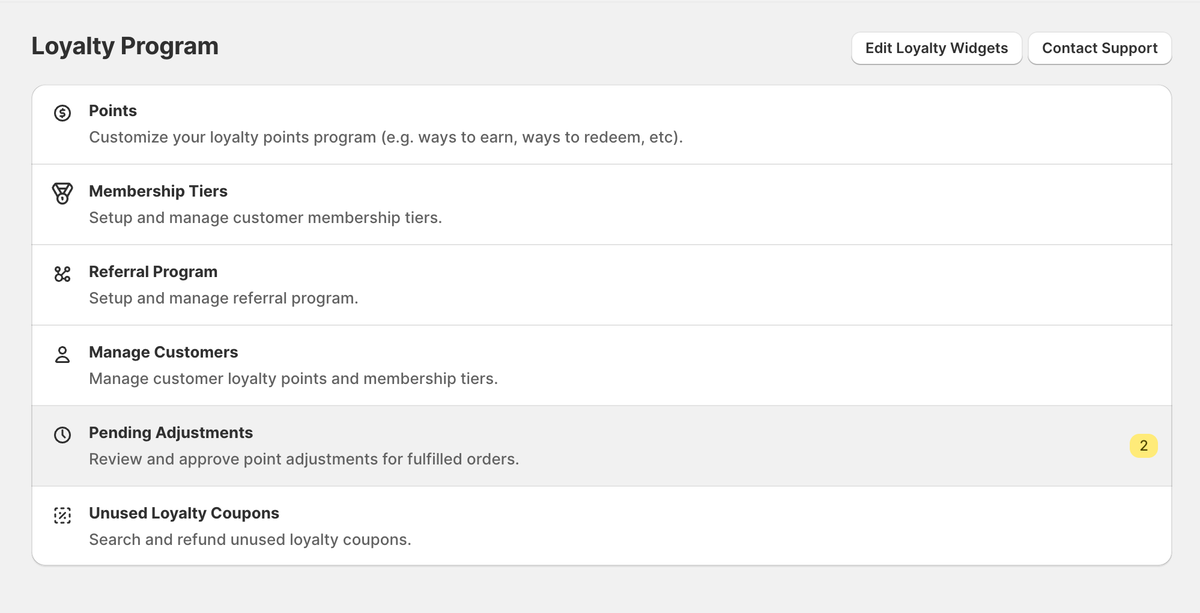
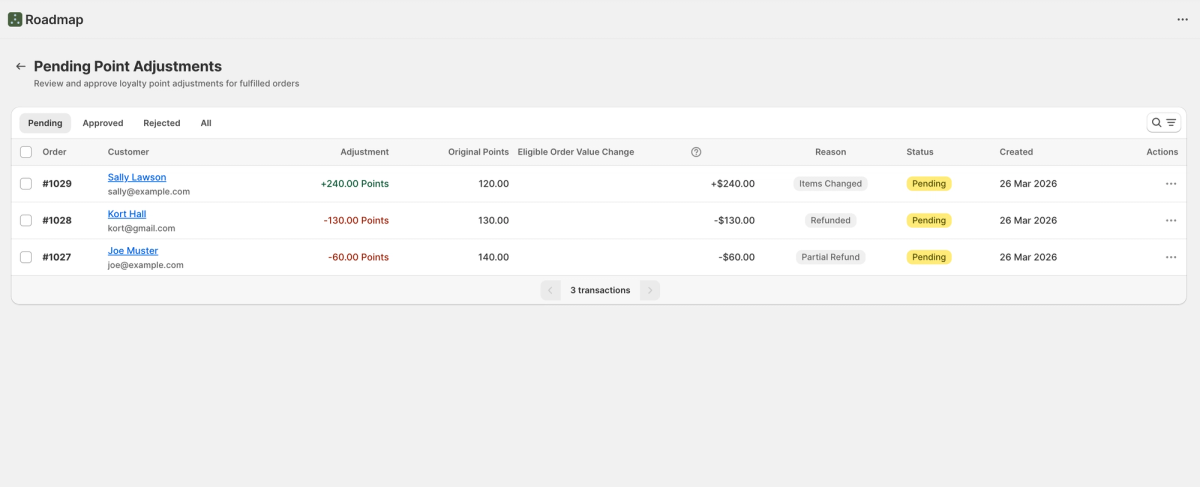
Each pending row shows the key details you need to review the change:
- order
- customer
- adjustment amount
- original points
- eligible order value change
- reason
- status
- created date
The queue can include both negative and positive adjustments.
Review a pending adjustment
Open the item
Go to Pending Point Adjustments.
If adjustments are waiting for review, Roadmap shows an indicator so your team can see there are pending items to action.
Click the customer name to open the customer’s loyalty profile.
Click anywhere else on the row to open the adjustment review panel.
Check the summary
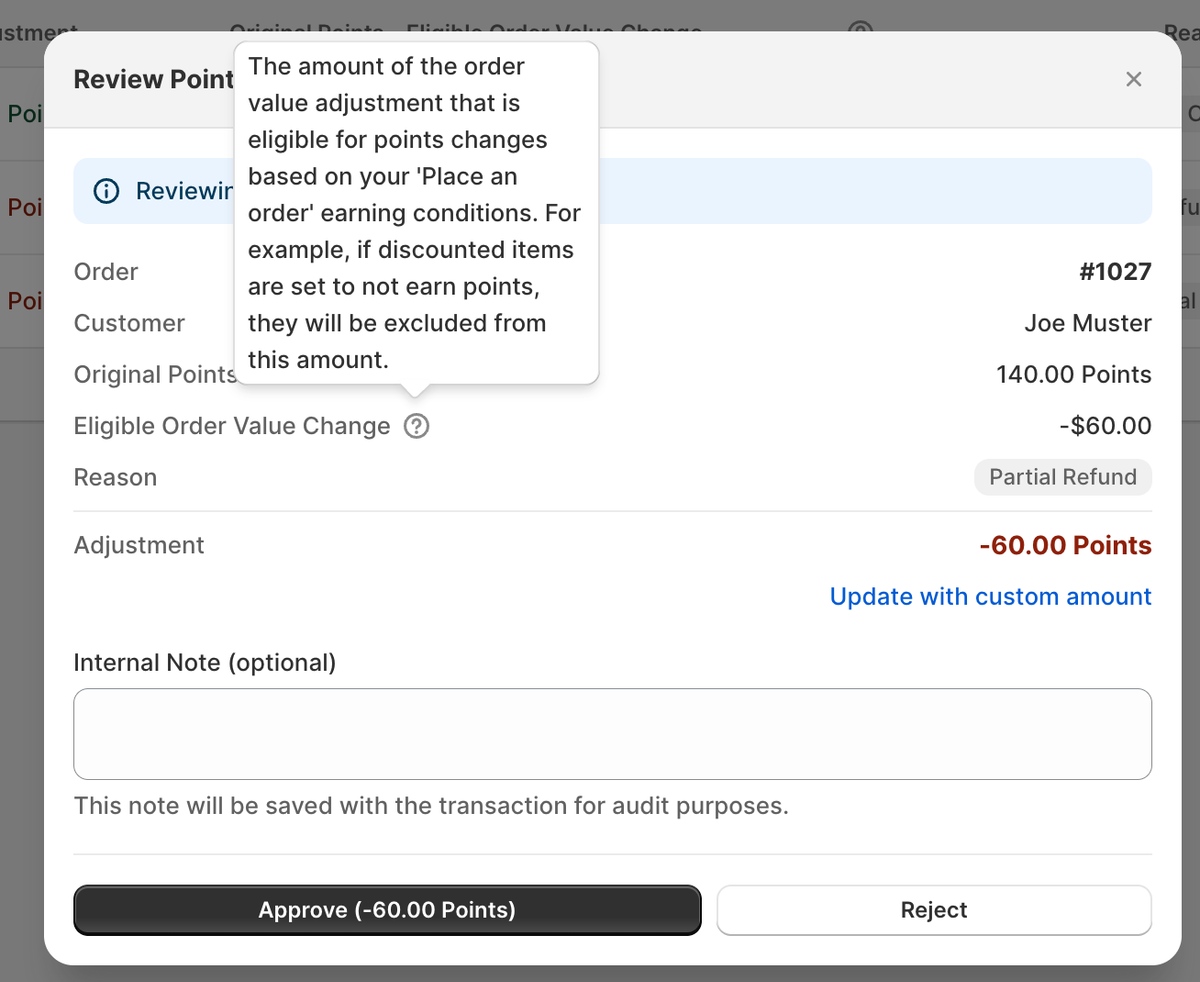
The review panel shows:
- order
- customer
- original points
- eligible order value change
- reason
- adjustment amount
- internal note
If multiple items are waiting, Roadmap steps you through them one by one.
Understand “Eligible Order Value Change”
This value is based on the part of the order that was eligible to earn points.
It is not always the same as the raw refund amount.
Roadmap respects your Place an order earning conditions, including:
- excluded products or variants
- excluded collections
- discounted items that do not earn points
- shipping rules
- orders containing point redemptions
If only part of the order was points-eligible, only that part affects the adjustment.
Approve, reject, or override the amount
If the suggested amount is correct, approve it.
If you need to change it, use Update with custom amount.
Add an internal note if you want an audit trail.
Then choose Approve or Reject.


Example: partial refund after fulfillment
Here is the flow shown in the example:
- the original order awarded 140 points
- a returned item reduced the eligible order value by $60
- Roadmap created a pending adjustment of -60 points
- the reason was Partial Refund
After approval, the point change appears in the customer’s point history.
The history line explains what changed and which order caused it.
Positive adjustments also appear here
The pending log is not only for deductions.
It also captures extra points that should be awarded after fulfillment.
Common examples:
- a customer exchanges into a higher-value item
- a fulfilled POS order has extra items added later
- the net payment increases after the original order was fulfilled
In these cases, the adjustment can be a positive points amount.
What happens after you action the adjustment
Once reviewed, the entry moves out of Pending and into:
- Approved
- Rejected
- All

You can still open processed entries to review the summary and any internal note.

If you approve the adjustment:
- the customer’s points balance updates immediately
- the event appears in Manage Customers as a point history line
- Klaviyo loyalty properties sync from that event
Rejecting an adjustment does not apply the point change or record a event in the customers point history.

Best practice
- Use Require approval before adjusting if staff regularly process returns or POS exchanges.
- Leave an internal note with the staff name or reason.
- Check the Eligible Order Value Change before using a custom amount.